Important Notes:
- Making a Group inactive does not delete the group or its associated data, however, only a user with administrative privileges may access or re-activate an inactive group.
- Inactive groups do not count against group subscription limits.
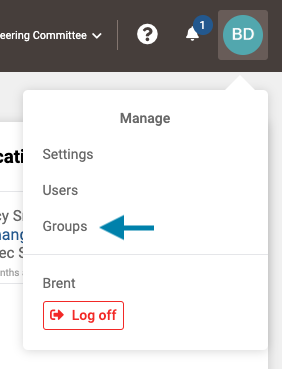
- First access the list of existing groups by clicking on your profile icon in the upper right corner of the application and choosing 'Groups' from the drop down menu that appears.
Note: A user may also select the Group from the Group drop-down list to the left of the help icon if the they are a member of the group.
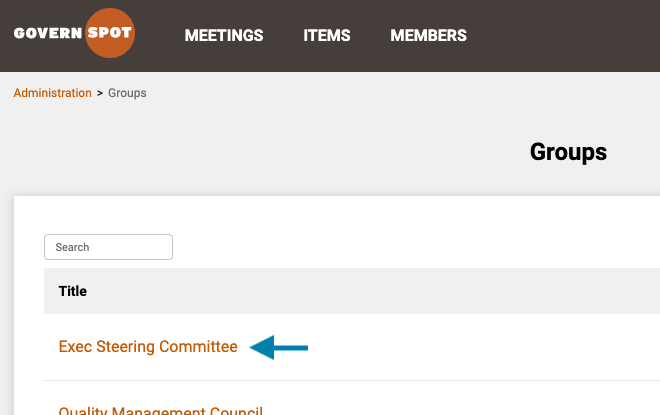
- Next, select the group you wish to deactivate by clicking on the group name.
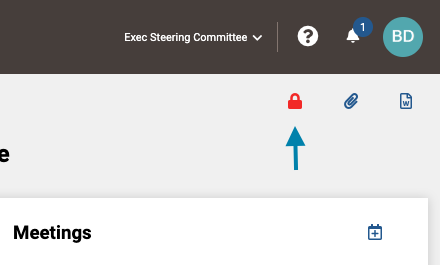
- Next, click on the red lock icon in the upper right area of the Group page.
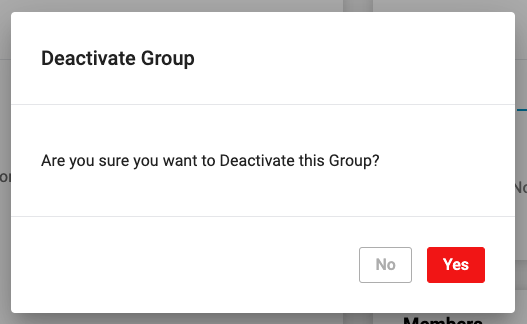
- Lastly, click the 'Yes' button to deactivate the group.
Comments
0 comments
Article is closed for comments.