Important Notes:
- Topic, Meeting, and Group files are stored separately. For instructions for adding or deleting a Group or meeting-specific file, click here.
- When uploading a file, the file will be added to the currently accessed folder. If a file is added to the top level/root (no folder) or is added to the wrong folder, the file can easily be moved to the correct folder after it is uploaded.
A. Adding a File to a Topic:
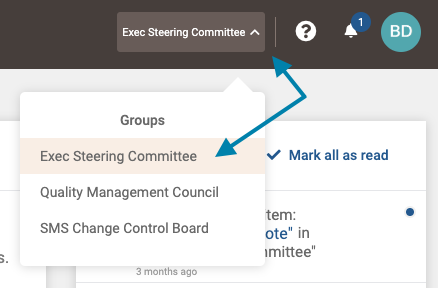
- First, access the group page related to the topic file(s) you wish to add a file to by clicking on the Groups list drop down in the upper right areas of the application, and clicking on the desired group.
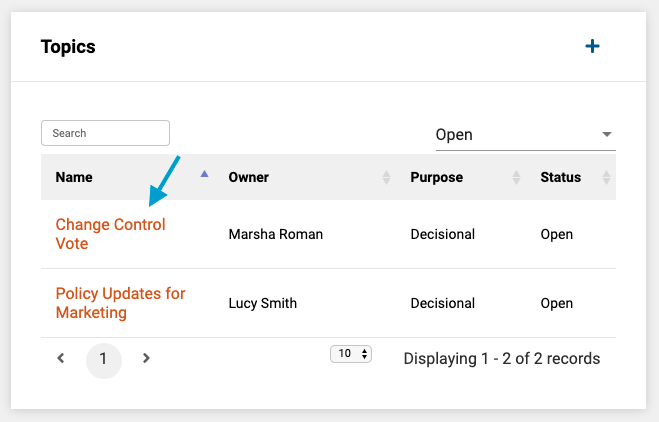
- Next, select the topic you wish to add a file to from the list of topics associated with the group.
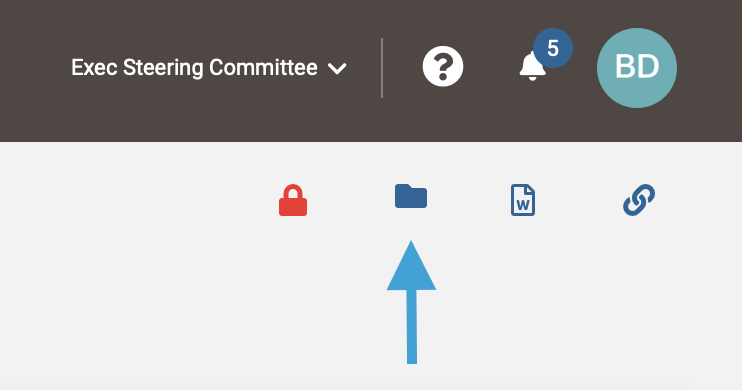
- Next, once the topic page opens, click the folder icon in the upper right corner of the topic page.
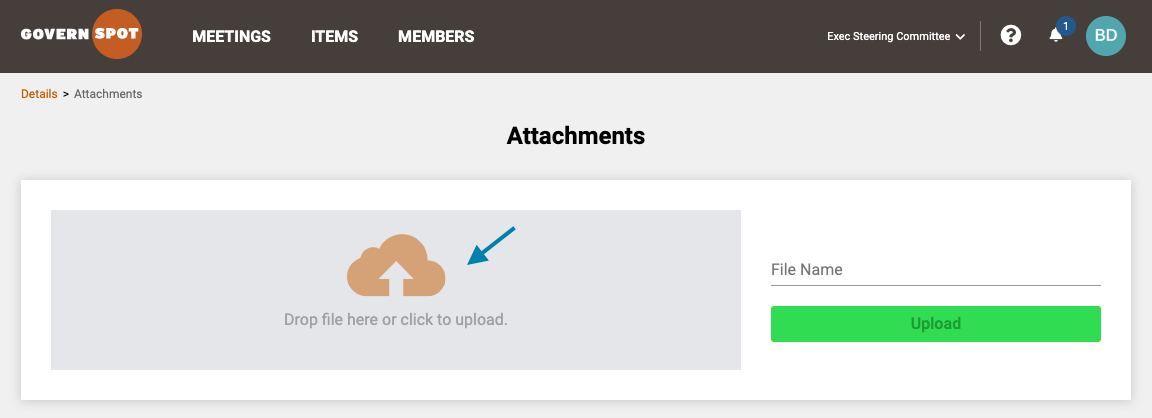
- Next, drag the file from any folder to the orange upload icon, or click on the upload icon to open a dialogue to select a file.
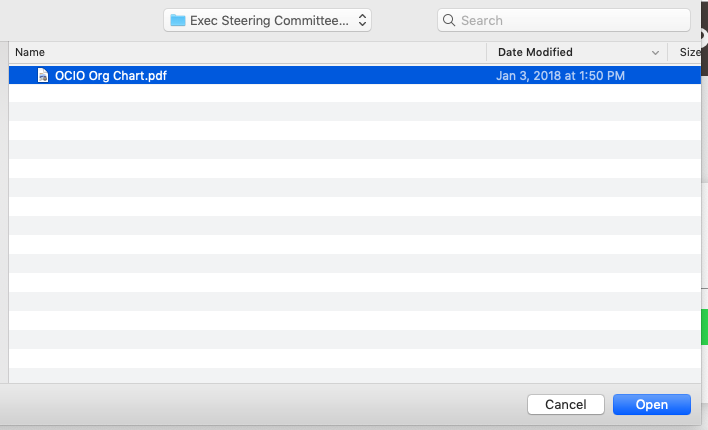
- Next, select a file from the 'Select File' menu (may vary based on operating system) and click the 'Open' button (or equivalent).
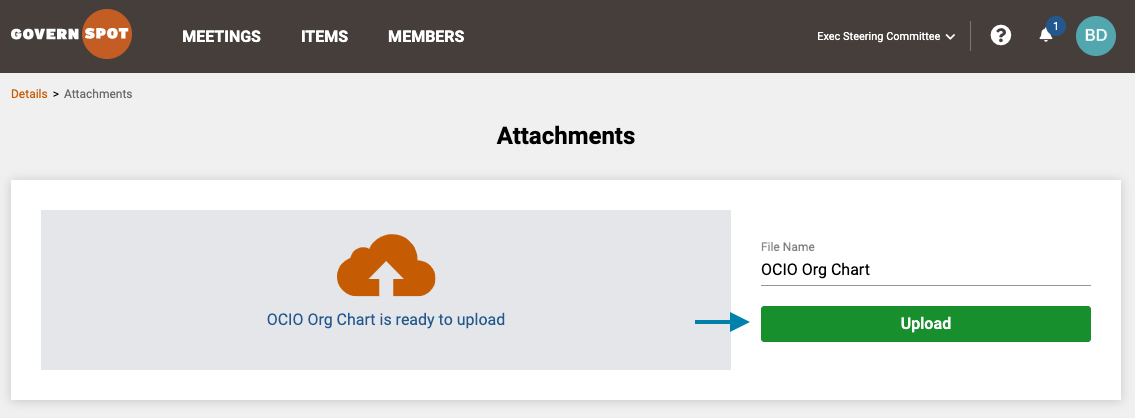
- Next, click the green 'Upload' button to complete the file upload process.
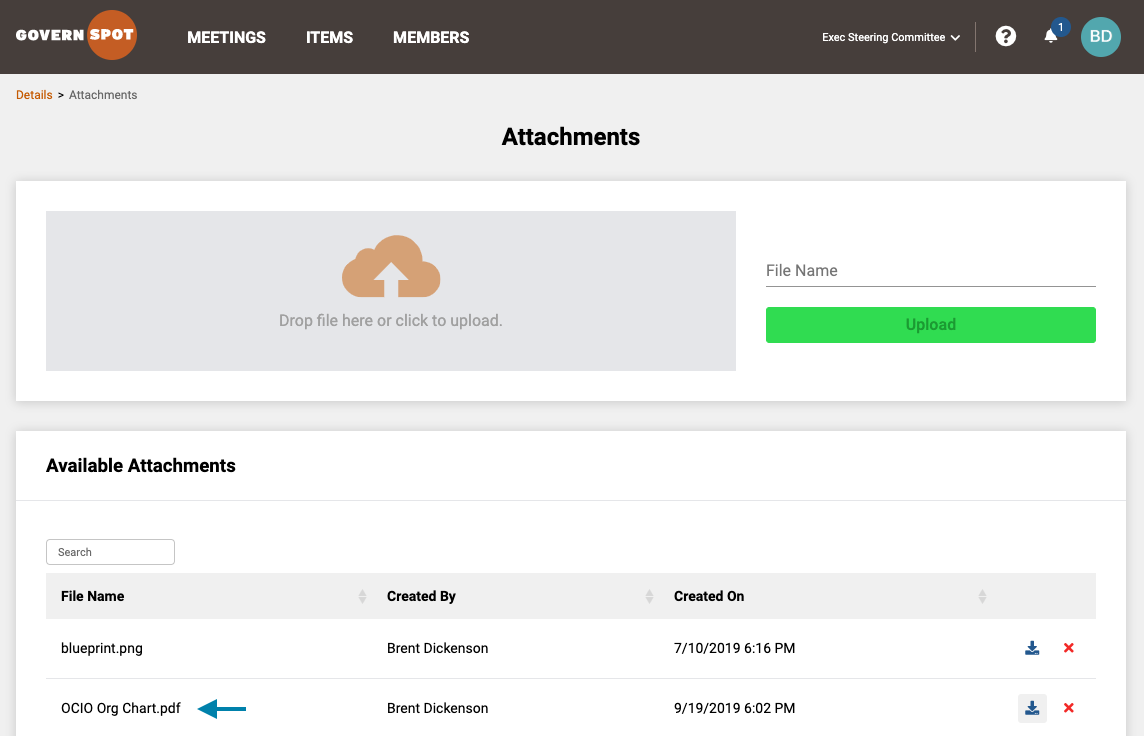
- Lastly, you can verify the file was added by reviewing the attachments list at the bottom of the Attachments page.
B. Deleting a File from a Topic:
- First, access the group page related to the topic file(s) you wish to delete a file from by clicking on the Groups list drop down in the upper right areas of the application, and clicking on the desired group.
- Next, select the topic you wish to delete a file from the list of topics associated with the group.
- Next, click the folder icon in the upper right corner of the topic page.
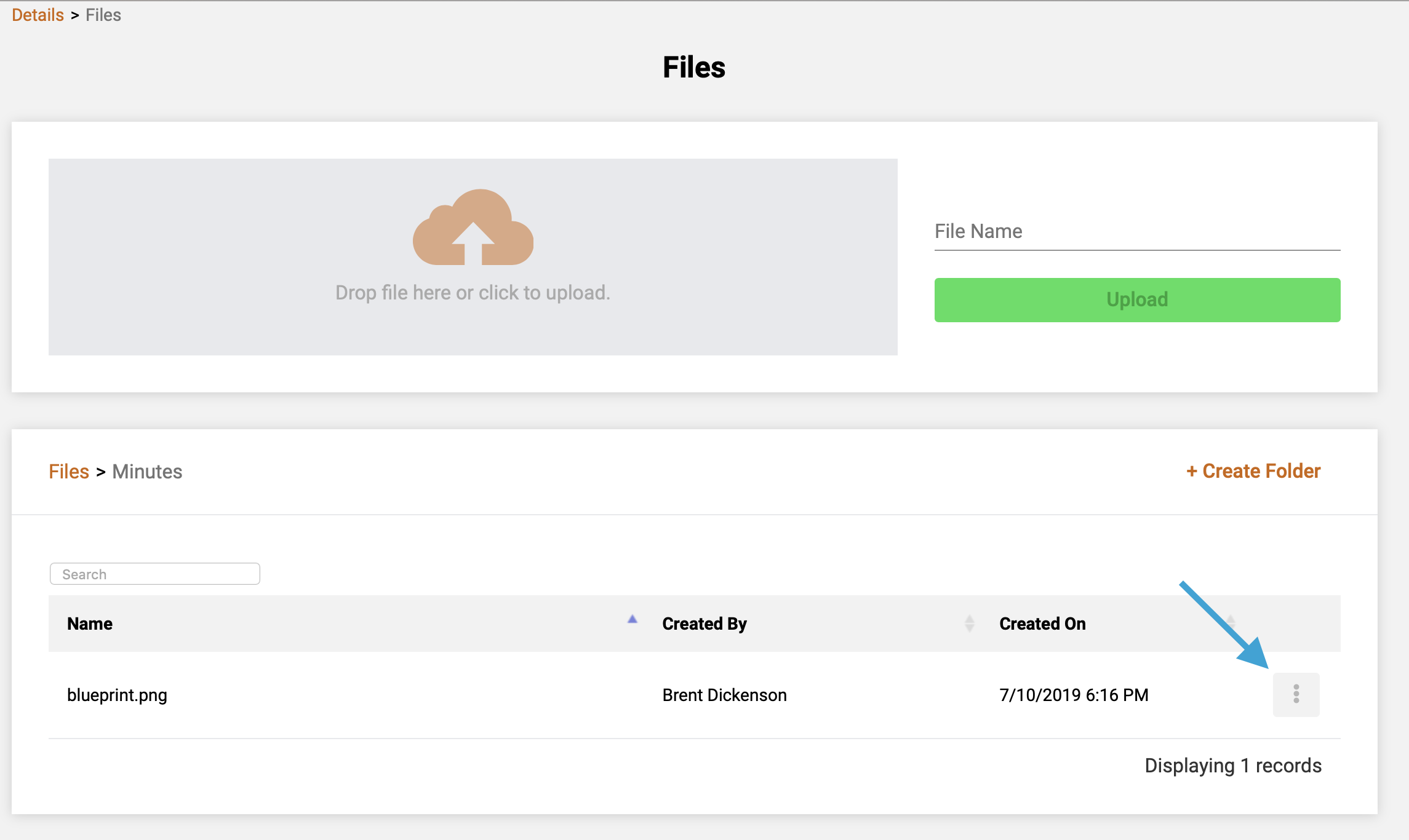
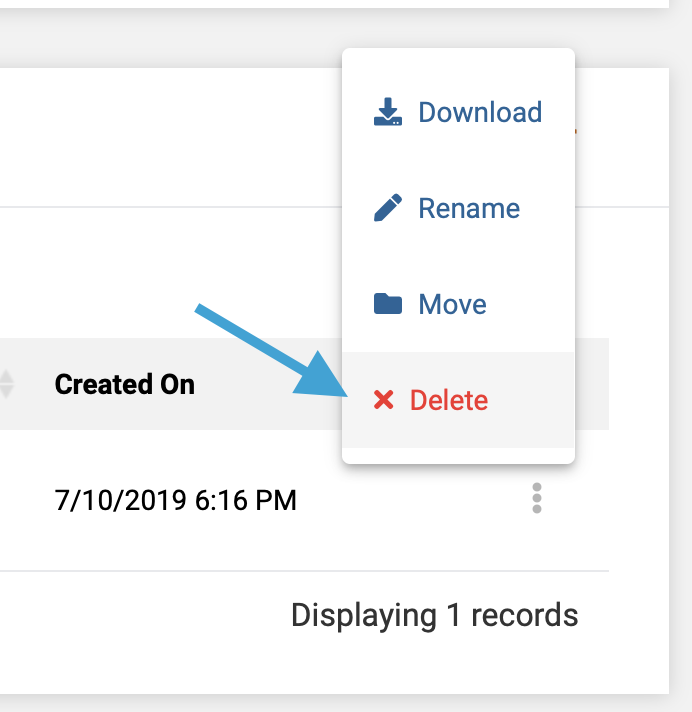
- Next, click the "3-dot" icon to the left of the file name you wish to delete. Note that you may need to first navigate to the folder where the file is stored.
- Next, on the pop-up menu, click on the Delete icon to initiate deletion of the file.
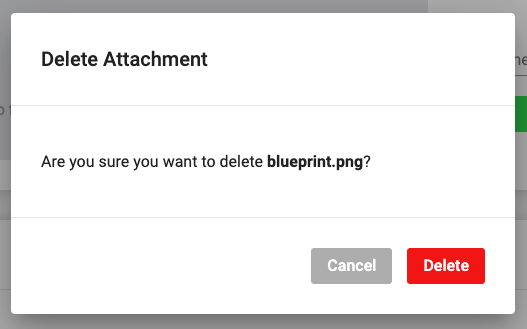
- Lastly, click the 'Delete' button on the confirmation dialogue to delete the file from the topic.
Comments
0 comments
Article is closed for comments.