Important Notes:
- Folders may contain other folders in addition to files for more flexible/nested file organization.
- When moving a folder, all subfolders and files are also moved.
- First, access the group, meeting, or topic page which contains the folder or file you wish to move. More information on accessing group, meeting, and topic files can be found here.
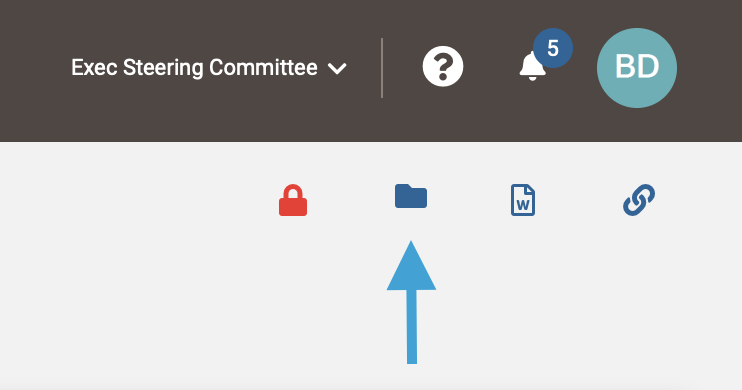
- Next, click the folder icon in the upper right corner of the page to access the file storage area.
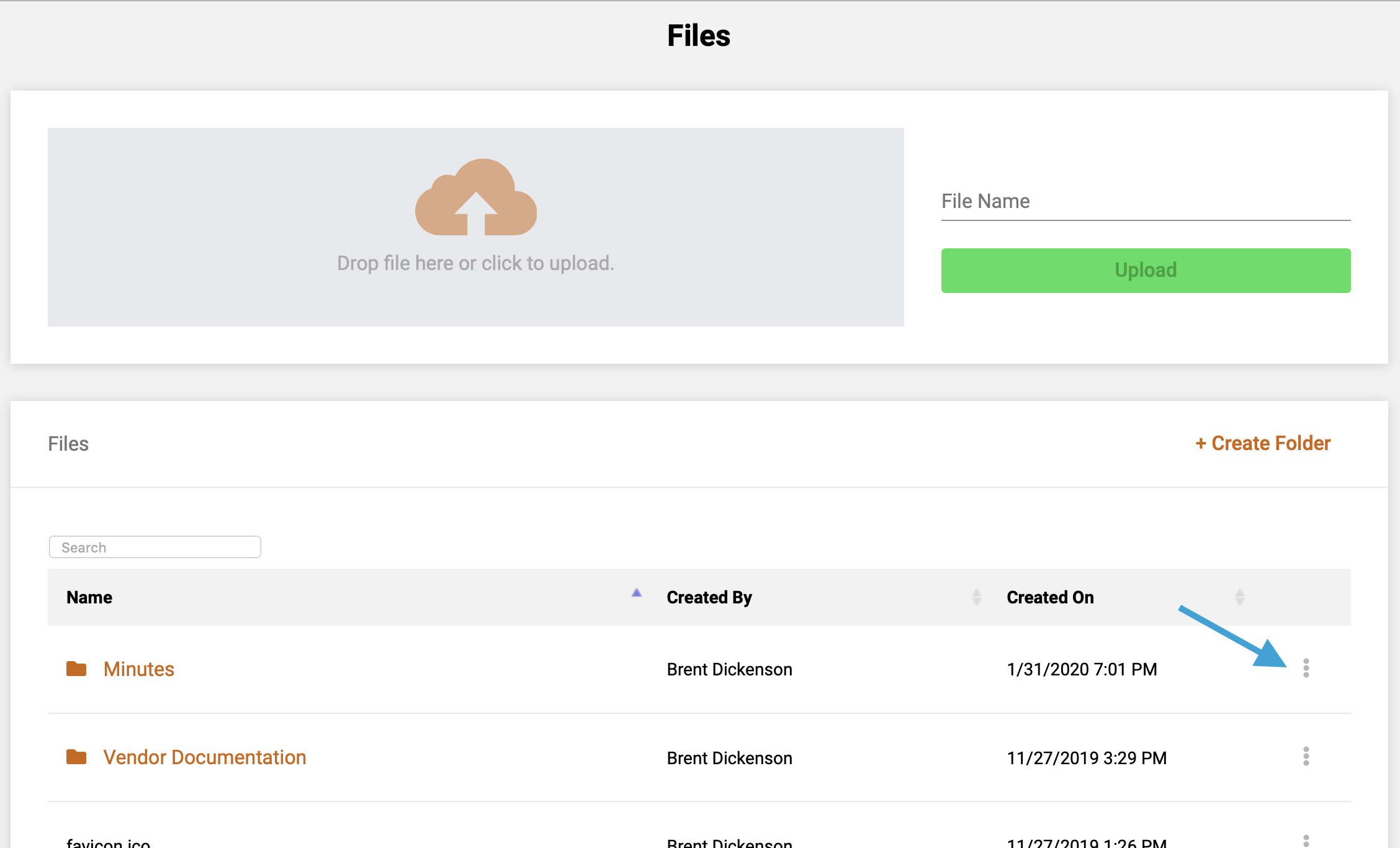
- Next, click the "3-dot" icon to the left of the folder or file you wish to move. Note that you may need to first navigate to the folder where the folder or file is stored.
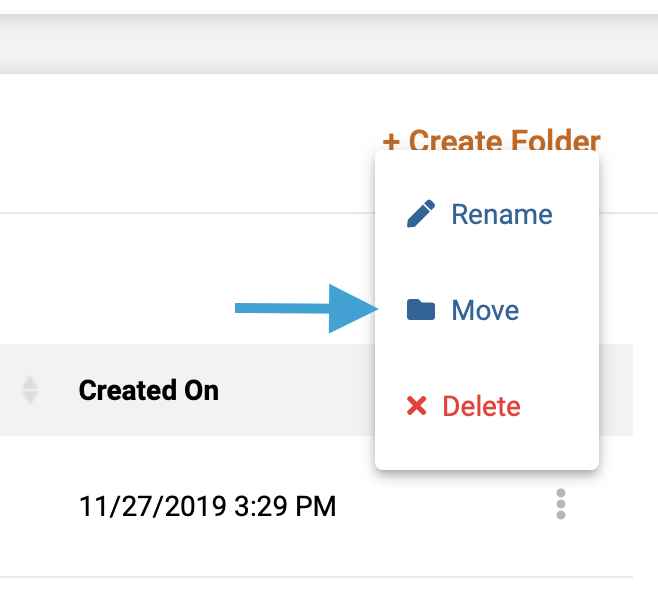
- Next, click on the 'Move' icon to initiate the folder/file move.
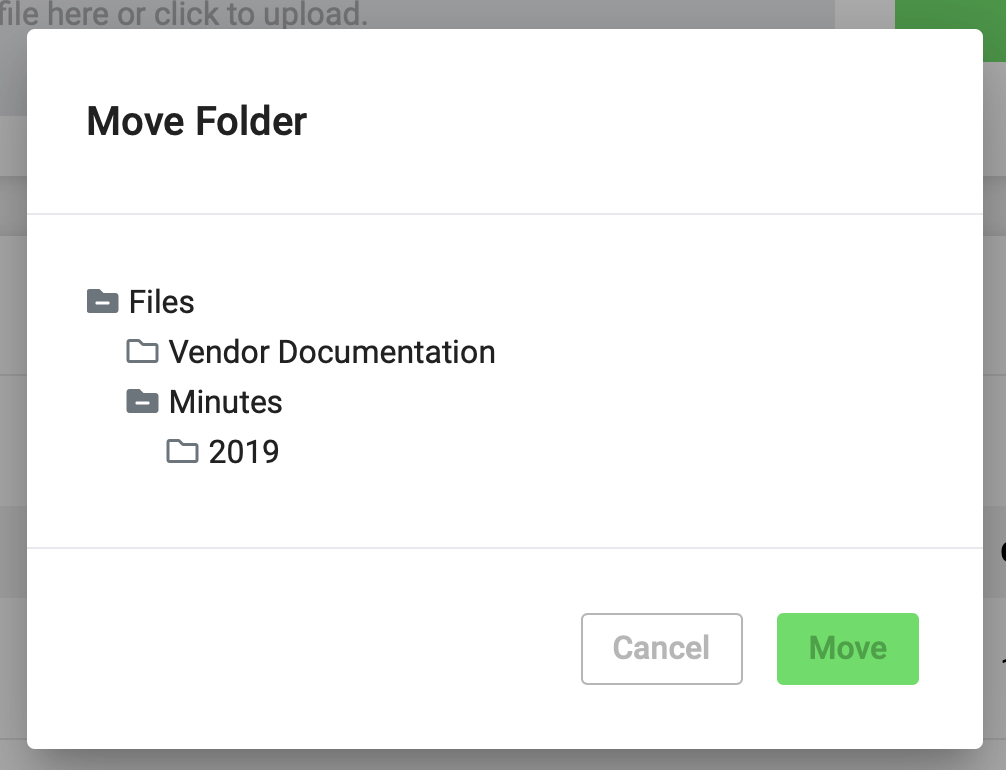
- Lastly, select the folder where you wish to move the folder or file to from within the dialogue box and click the green 'Move' button to complete the move.
Comments
0 comments
Article is closed for comments.