Important Notes:
- Topic, Meeting and Group-level files are stored separately. For instructions for accessing a group or topic-specific file, click here.
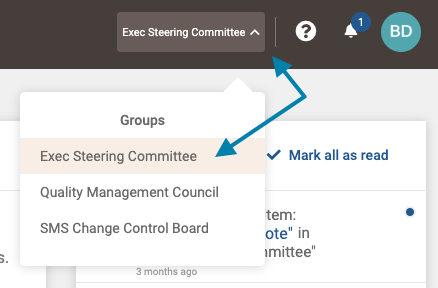
- First, access the group page for the Meeting file(s) you wish to access by clicking on the Groups list drop down in the upper right areas of the application, and clicking on the desired group.
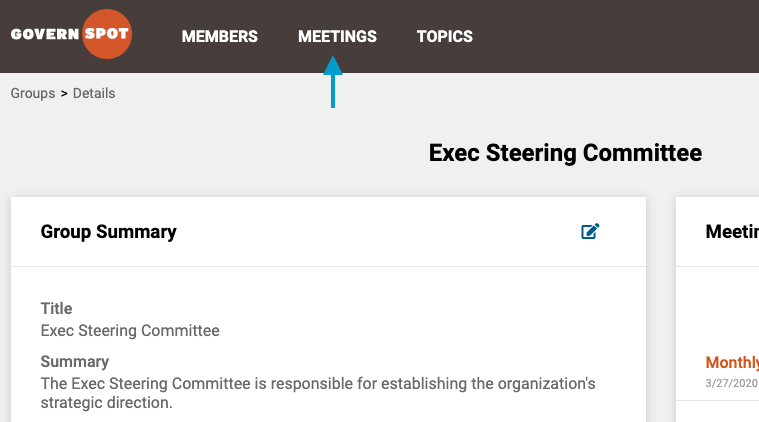
- Next, access the Meetings list for the selected group by clicking on the Meetings choice in the application header.
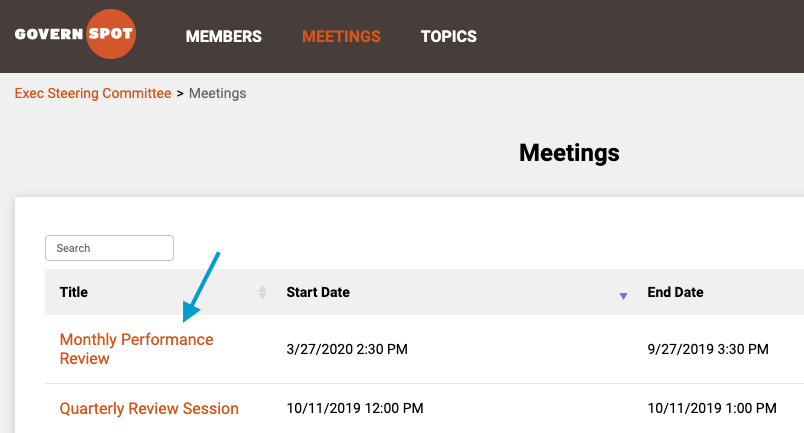
- Next, select a meeting from the list of meetings associated with the desired files.
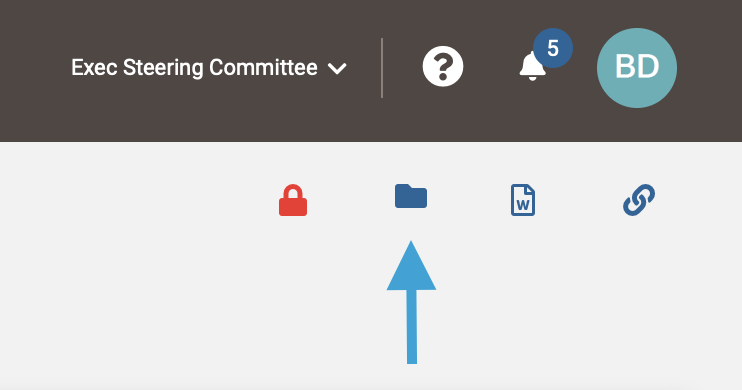
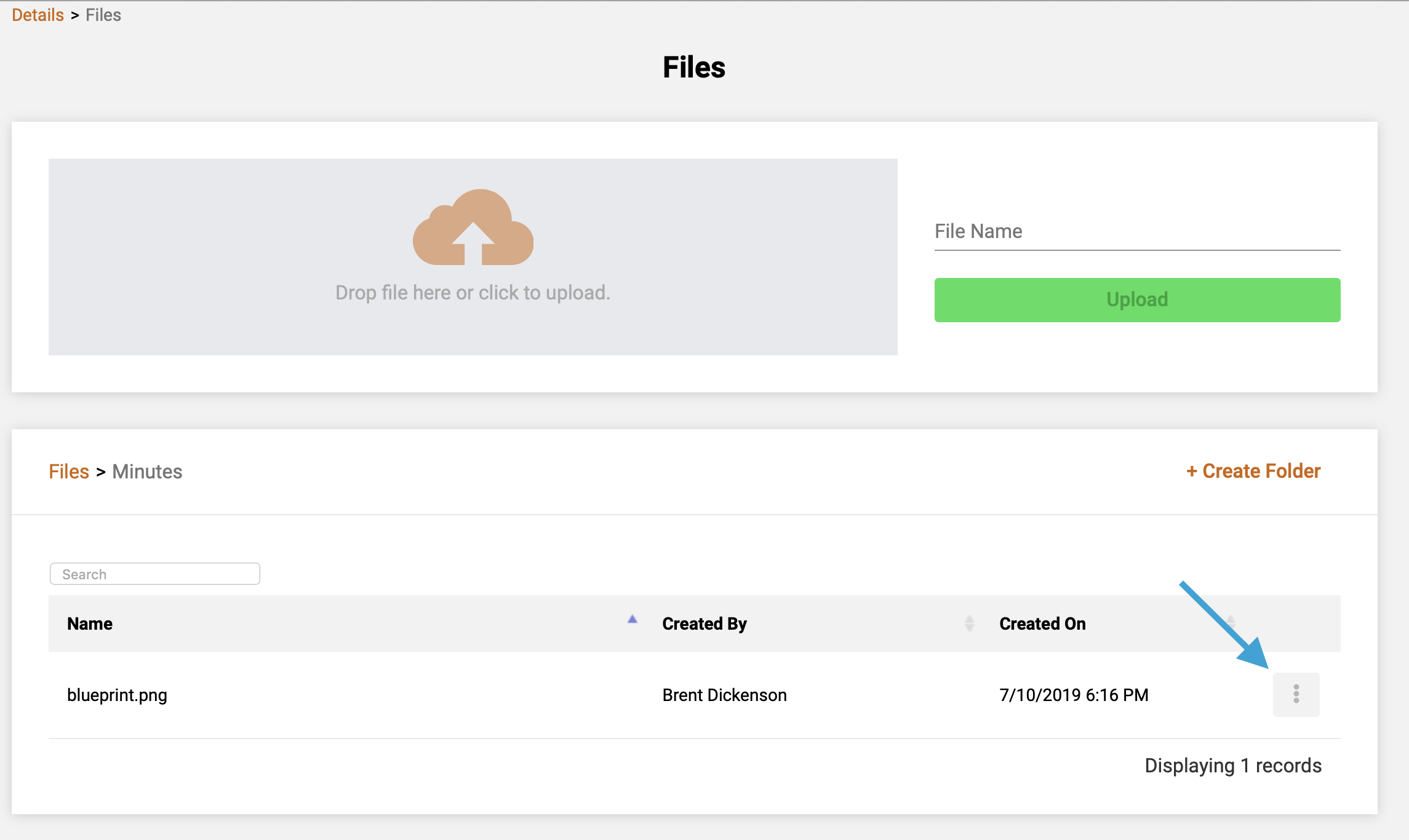
- Next, click the folder icon in the upper right corner of the meeting page to access any files associated with a meeting.
- Next, click the "3-dot" icon to the left of the file name you wish to access/download. Note that to access the file, you may need to first navigate to the folder where it is stored.
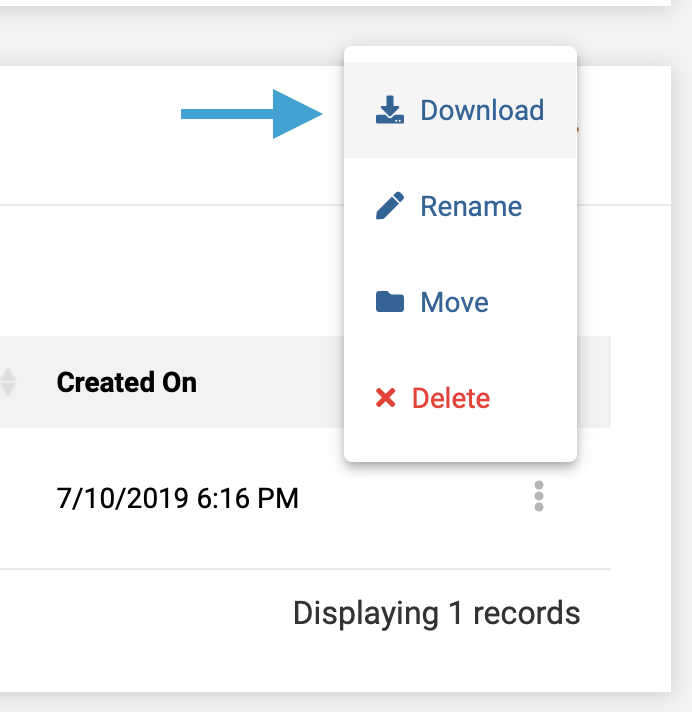
- Lastly, on the pop-up menu, click on the download icon to initiate a download of the file.
Comments
0 comments
Article is closed for comments.