Important Notes:
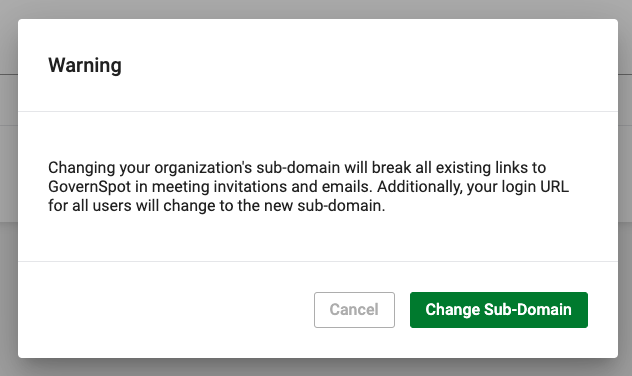
- WARNING - Changing your organization's sub-domain will break all existing links to GovernSpot in meeting invitations and emails. Additionally, your login URL for all users will change to the new sub-domain.
- Account Administration settings are only accessible by users with account administrator rights - Group Administrator rights do not possess account administrator rights.
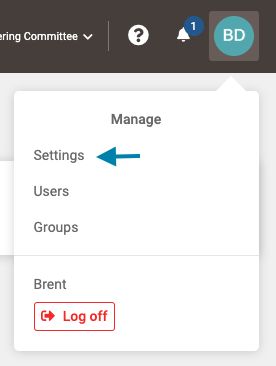
- First, click on the profile icon in the upper right corner and then select the 'Settings' link in the drop down menu.
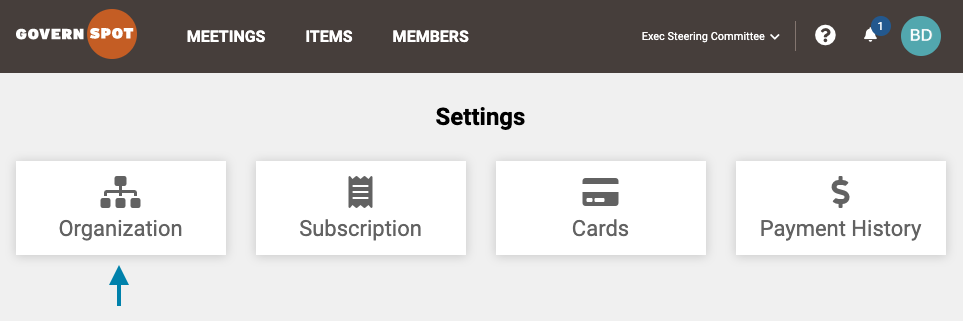
- Next, select the 'Organization' card on the Settings page.
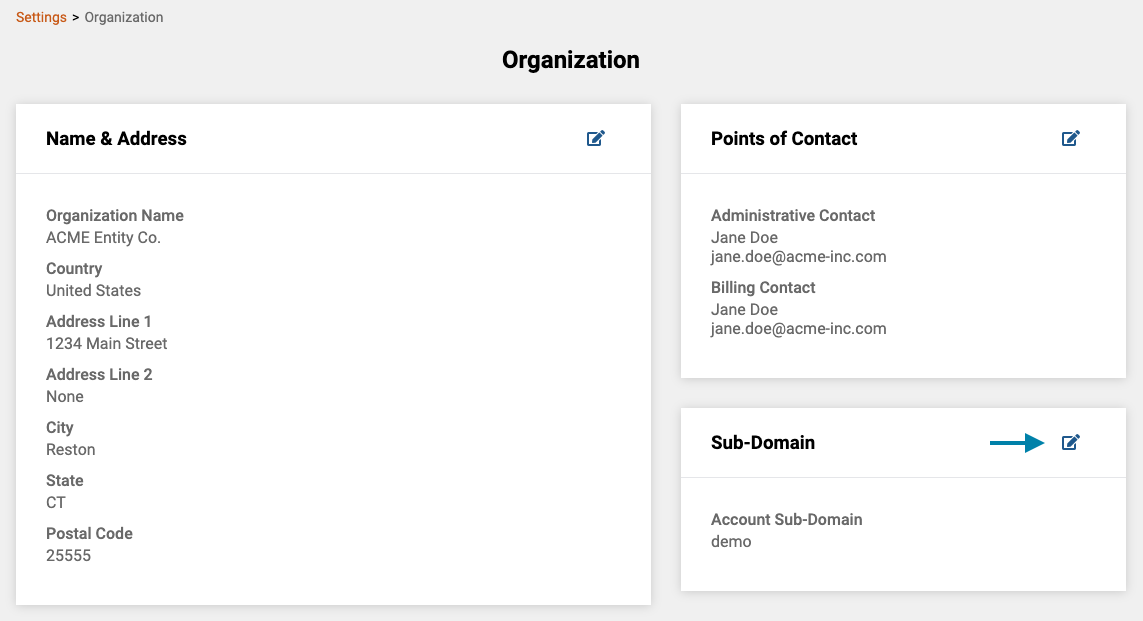
- Next, Click on the 'Edit' icon in the upper right corner of the Sub-Domain box.
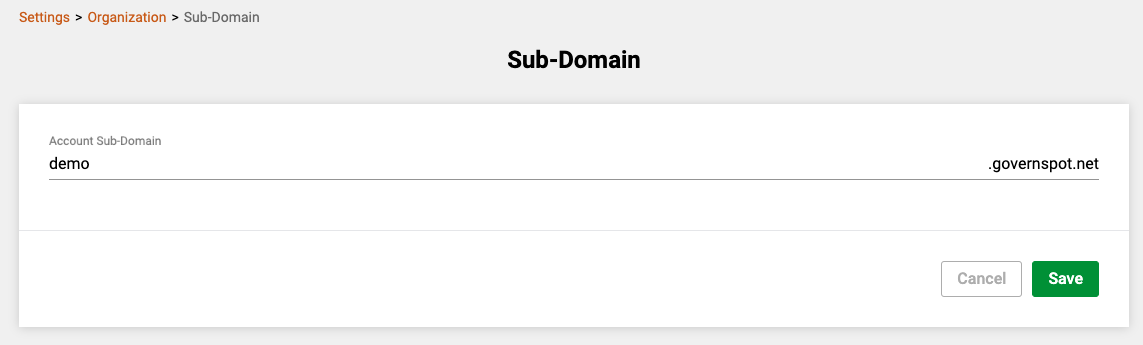
- Next, change the name of the sub-domain and click the green 'Save' button in the lower right corner of the form.
- Lastly, click the green 'Change Sub-Domain' button in the lower right corner of the message window.
Comments
0 comments
Article is closed for comments.