Important Notes:
- You can log into your GovernSpot account with a Google or LinkedIn account by linking the account to GovernSpot.
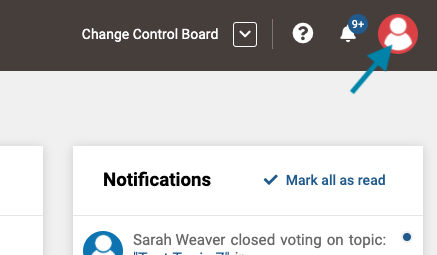
- First, access your user profile by clicking on your user icon in the upper right corner of the application.
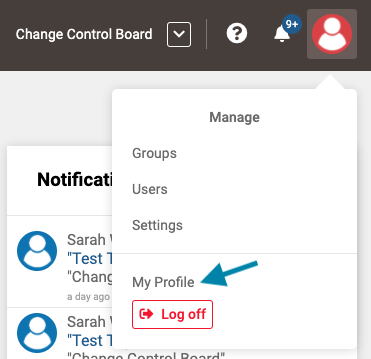
- Next, click on the 'My Profile' link in the drop down menu.
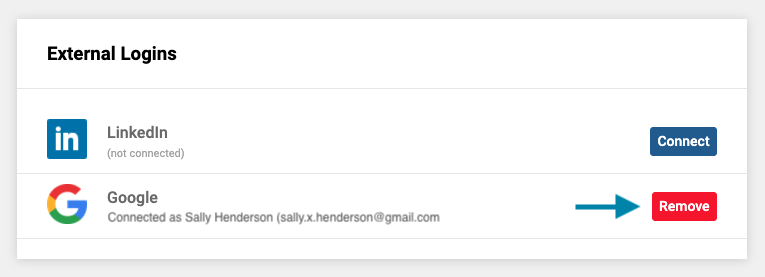
- Next, in the External Logins box, click on the red 'Remove' button for each account you wish to disconnect from GovernSpot.
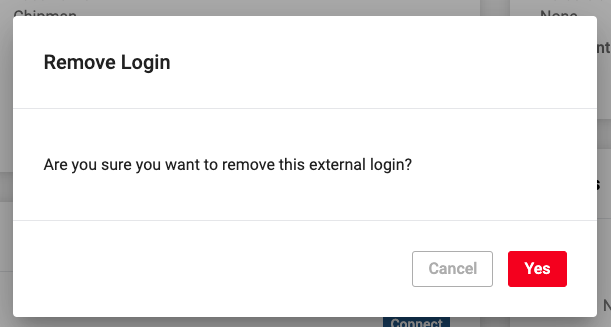
- Next, click the red 'Yes' button in the lower right corner of the dialogue to complete the process of disconnecting the social login from GovernSpot.
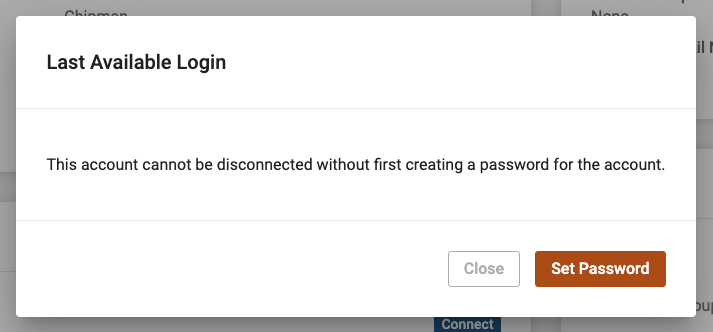
- If you created your GovernSpot account using a social account login, you will first need to set a general account password before proceeding with the disconnection process. To do this, click the 'Set Password' button in the lower right corner of the dialogue window.
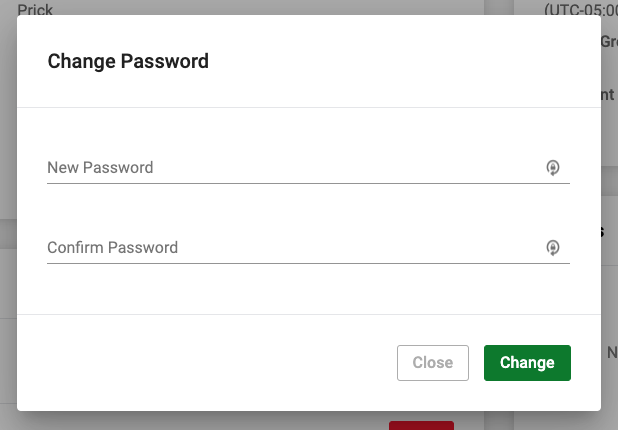
- If you are required to enter a password, complete the process by entering and confirming a general system password which will be used to access your account in the future.
Comments
0 comments
Article is closed for comments.