Important Notes:
- Only a user with administrative privileges can deactivate a user.
- Deactivating a user does not remove them as a Member of a Group. A user with administrative privileges, a Group Chair, or Group Administrator must remove the Member from a Group.
- Deactivated users do not count against user limits associated with a specific subscription level.
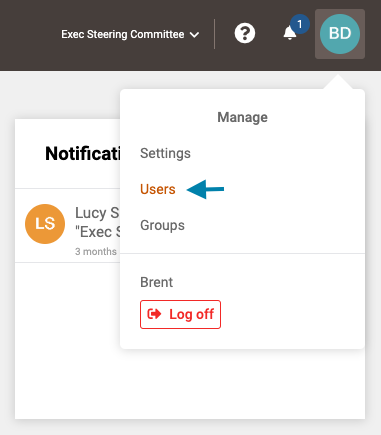
- First access the list of all users by clicking on your profile icon in the upper right corner of the application and choosing 'Users' from the drop down menu that appears.
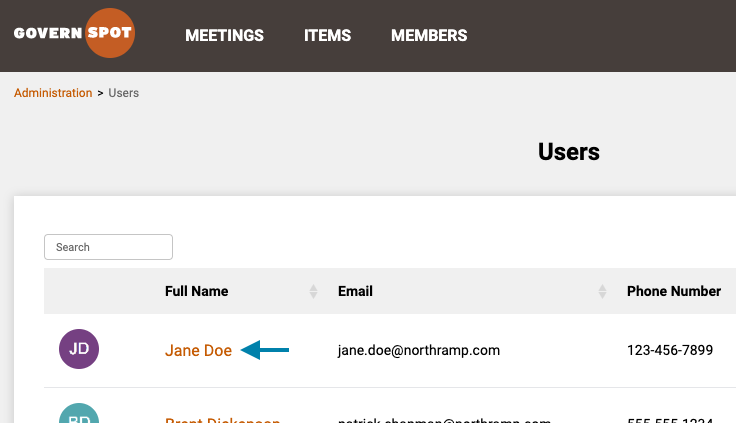
- Next, locate the user's name in the list and click on the name of the user you wish to change the password for.
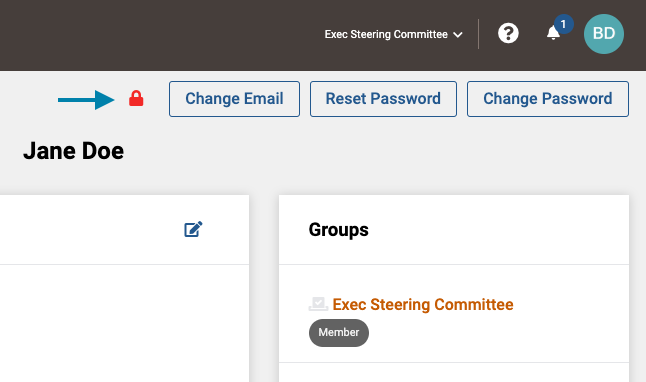
- Next, click the red 'Lock' icon in the upper right area of the user profile screen.
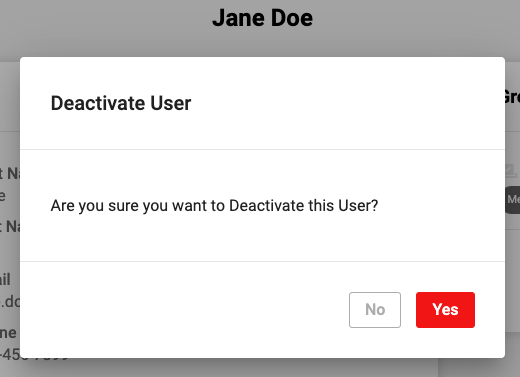
- Lastly, in the window that opens, click the 'Yes' button. Following this action the user will no longer possess access to the associated GovernSpot account.
Comments
0 comments
Article is closed for comments.