Important Notes:
- Any user that has forgotten their password may reset their password at any time by clicking on the 'Forgot Password' link on the organization's login page.
- A regular user may also change or reset their own password from within the system by following the steps below.
- An administrator may change any user's password manually or send an email to the user with a link to reset the password themselves.
Option 1 - Manually Changing a User's Password:
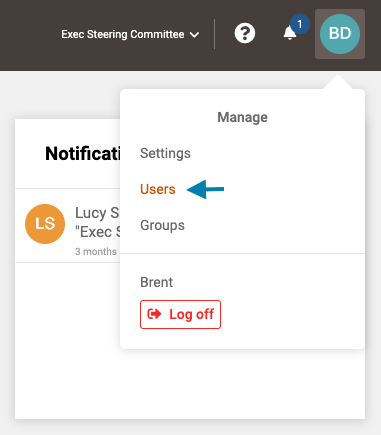
- First access the list of all users by clicking on your profile icon in the upper right corner of the application and choosing 'Users' from the drop down menu that appears.
Note: A user may also select their own name above the 'Log-Off' button to directly access their own profile to skip the next step.
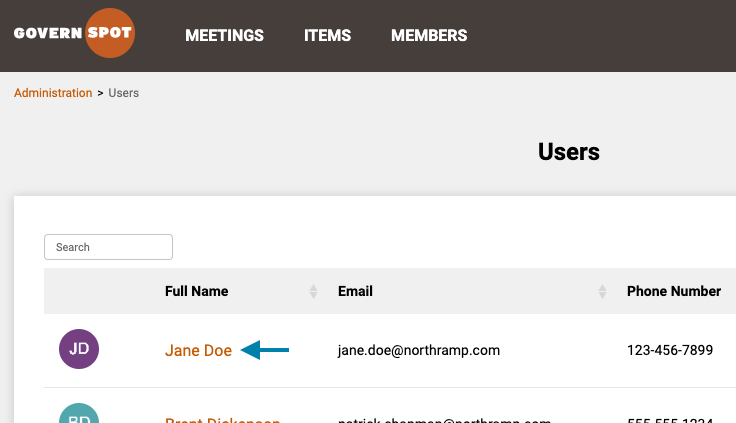
- Next, locate the user's name in the list and click on the name of the user you wish to change the password for.
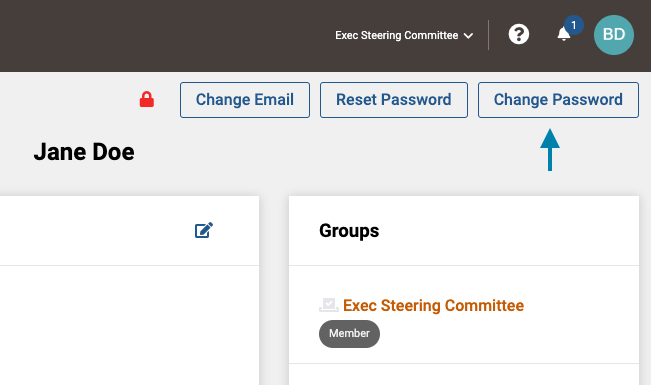
- Next click the 'Change Password' button in the upper right area of the user profile screen.
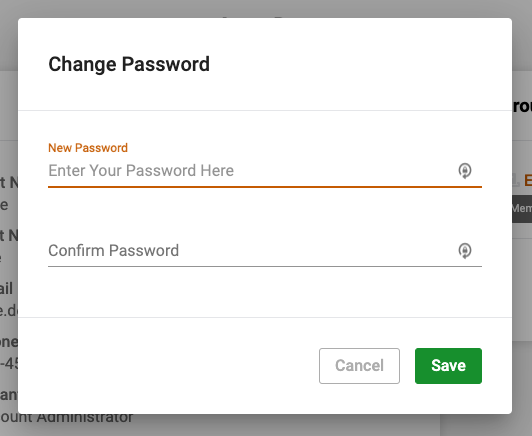
- Lastly, in the window that opens, enter a new password and then enter the same password again to confirm it and click the 'Save' button.
Option 2: - Sending a Password Reset Request to a User:
- First access the list of all users by clicking on your profile icon in the upper right corner of the application and choosing 'Users' from the drop down menu that appears.
- Next, locate the user's name in the list and click on the name of the user you wish to change the password for.
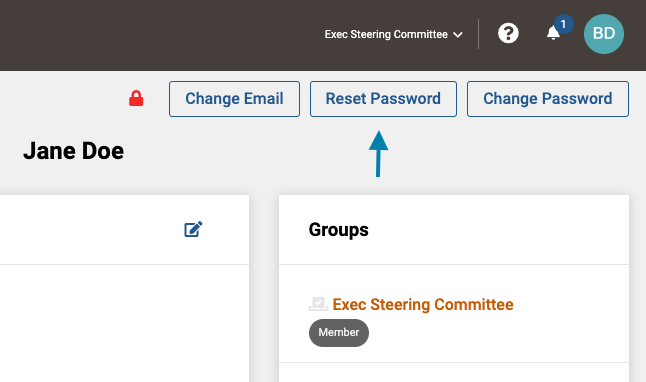
- Next click the 'Reset Password' button in the upper right area of the user profile screen.
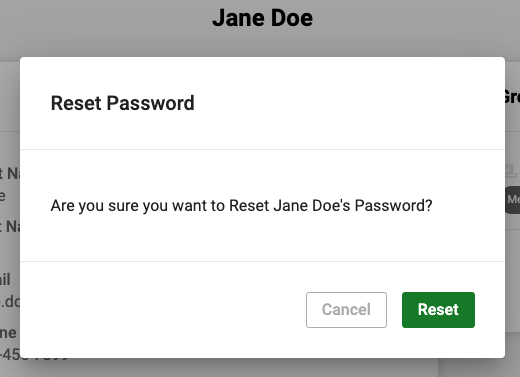
- Lastly, in the window that opens, click the 'Reset' button. Following this action the user will receive an email with a web link to enter and confirm a new password for their account.
Comments
0 comments
Article is closed for comments.