Important Notes:
- Only topics categorized as 'Decisional' possess voting functionality.
- Only a member with a Chair or administrator role can open and close topic votes.
- To vote, a member must possess voting rights - which is set within their member profile accessible from the group page. An example of a non-voting member may be a group administrator who only manages the logistics of the group rather than participating as a full member.
1. Opening a Vote on an Topic
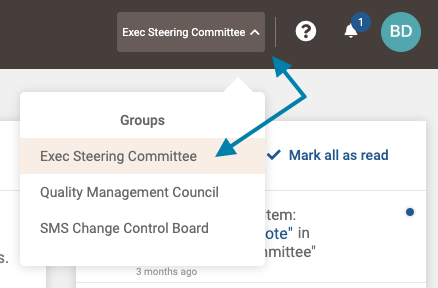
- First, select the group for which you wish to open a topic vote for from the group selection menu in the upper right area of the application.
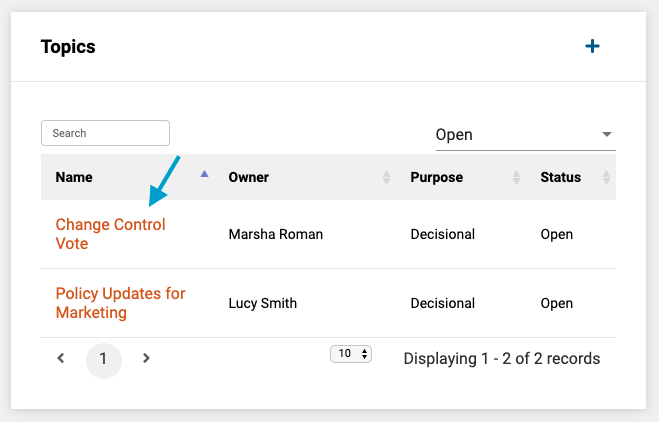
- Next, in the Topics frame on the group page, select the topic you wish to edit by clicking on its title in the list of topics.
- Next, in the 'Voting' frame on the topic page, click the 'Vote Switch' button.

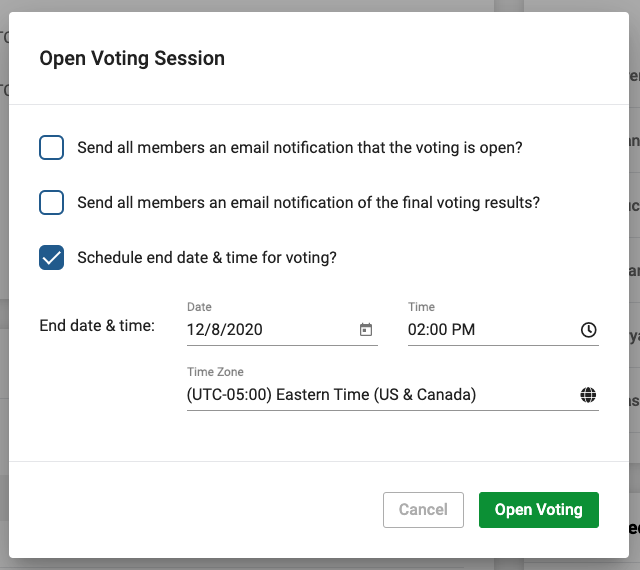
- Lastly, within the 'open vote' dialogue box, select whether you wish to:
- Notify members via email that the voting on the topic is open
- Have the results automatically sent to members when voting is closed, as well as
- Pre-select a date and time for the voting to automatically close
2. Manually Closing a Vote on a Topic
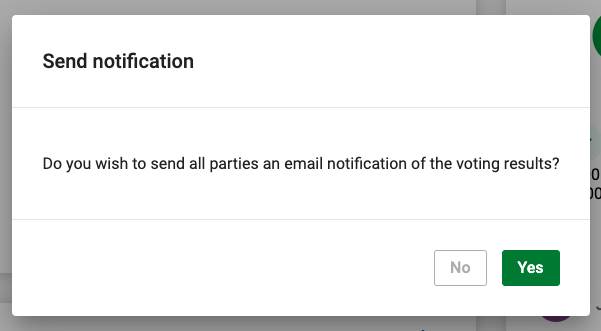
First, repeat the instructions above to access the group topic and click on the vote switch to switch the voting from 'Open' to 'Closed'. Next select 'Yes' or 'No' from the 'Send Notification' form to optionally send an email notification to all group members the results of the vote.
Comments
0 comments
Article is closed for comments.