Important Notes:
- Agendas are comprised of topics which represent topics a group is addressing as well as meeting-specific topics which are only accessible via the agenda
- Meeting-specific topics do not have additional information associated with them such as detailed descriptions or voting.
- First, access the meetings list for the current group by clicking on the 'Meetings' link in the header of the application.
Note: You can also access a Meeting by clicking on the meeting title in the 'Meetings' frame on the associated group's home page.

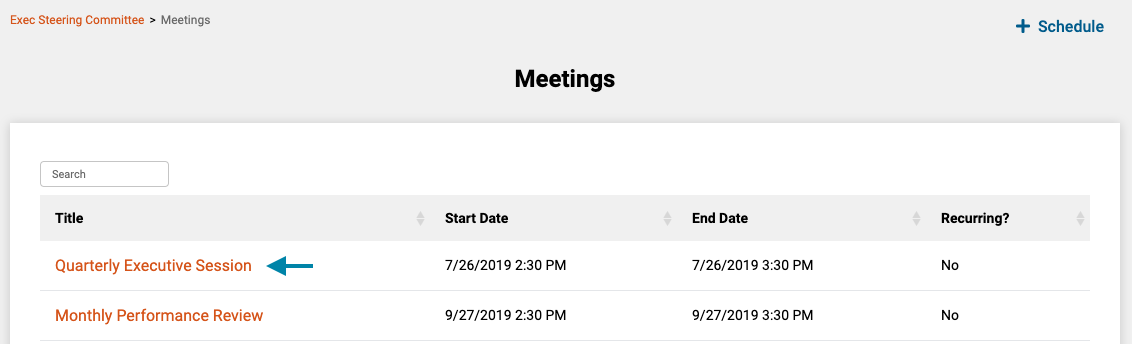
- Next, click on the title of the meeting you wish to edit an agenda for, to open the meeting's home page.
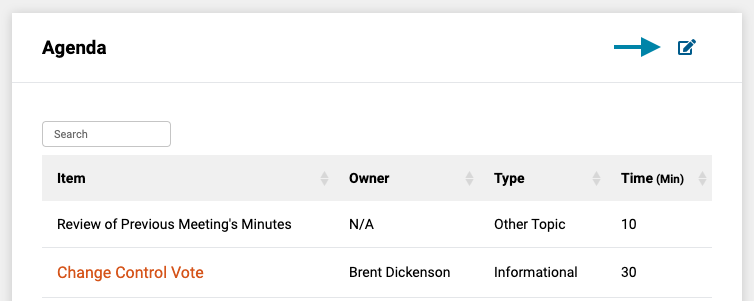
- Next click the 'Create/Edit Agenda' icon in the right corner of the 'Agenda' frame on the meeting's home page.
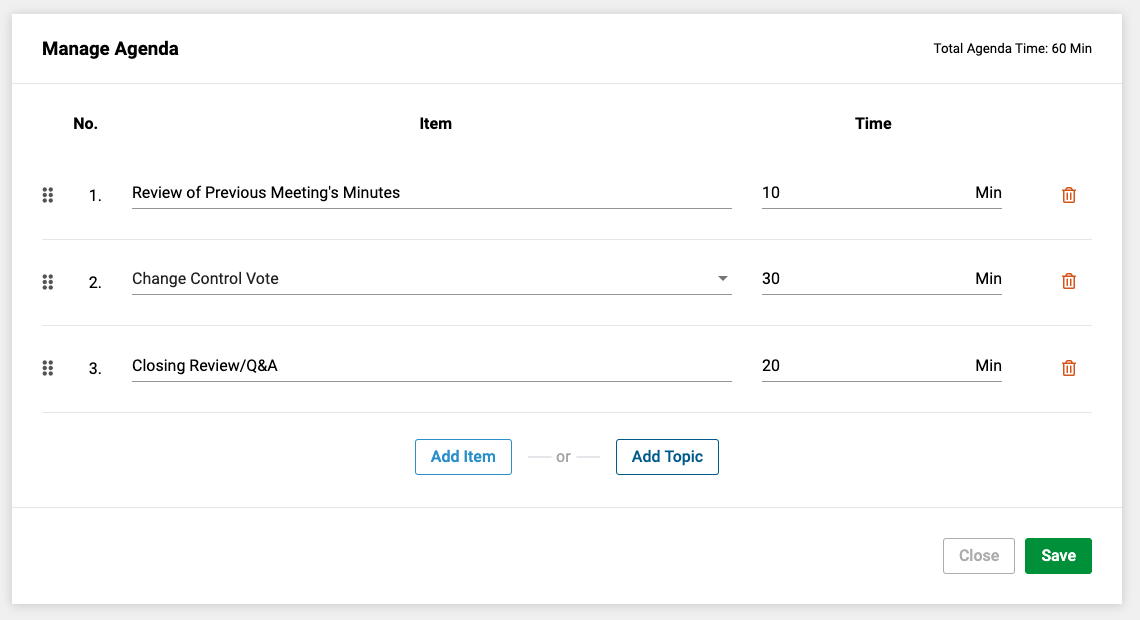
- Next, modify the existing agenda content as desired. You can click either the 'Add Existing Group Topic' button or 'Add Meeting-Only Topic' button to add additional topics.
Note:
- Add Existing Group Topic - A topic already associated with the group. All group topics can be accessed from a group's home page.
- Add Meeting-Only Topic - A topic specific to this meeting such as 'introductions' or 'review of previous minutes'.
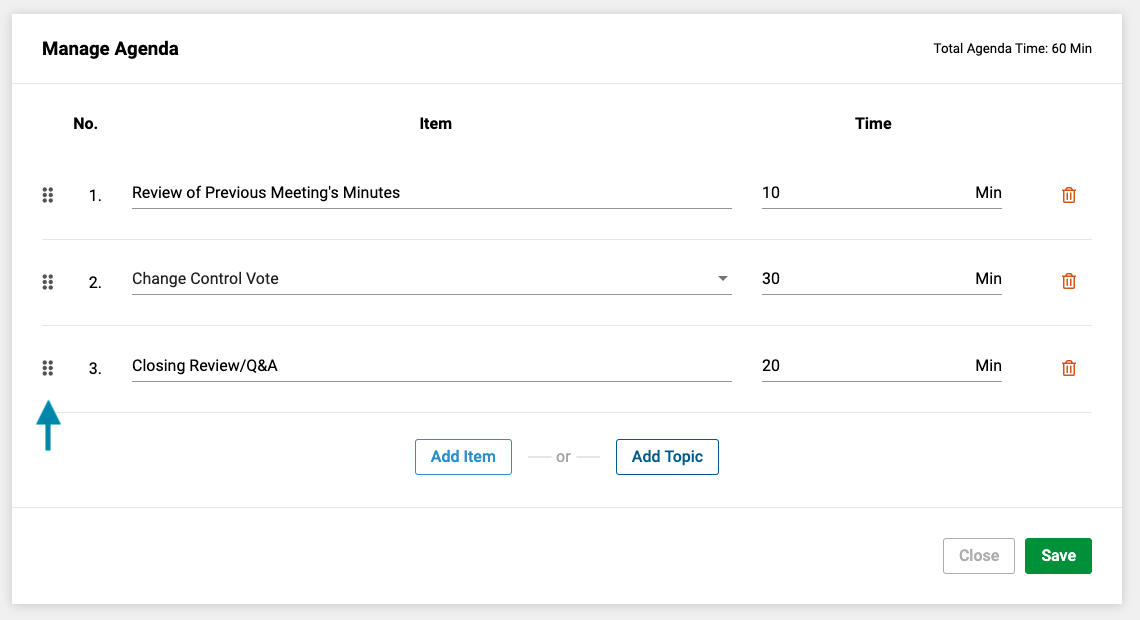
- Optionally, for each topic added, you may also assign a specific amount of time for it on the agenda. You may also re-order the agenda by click-holding and dragging the 'dot' icon of the desired agenda row and moving it up or down to re-order the topic on the agenda.
- You may also delete topics to remove it from the agenda by clicking on the 'trash can' icon on each row of the agenda. Agenda topics cannot be removed once they have minutes associated with them. Additionally, deleting a group topic will only remove the topic from the agenda, not from the group.
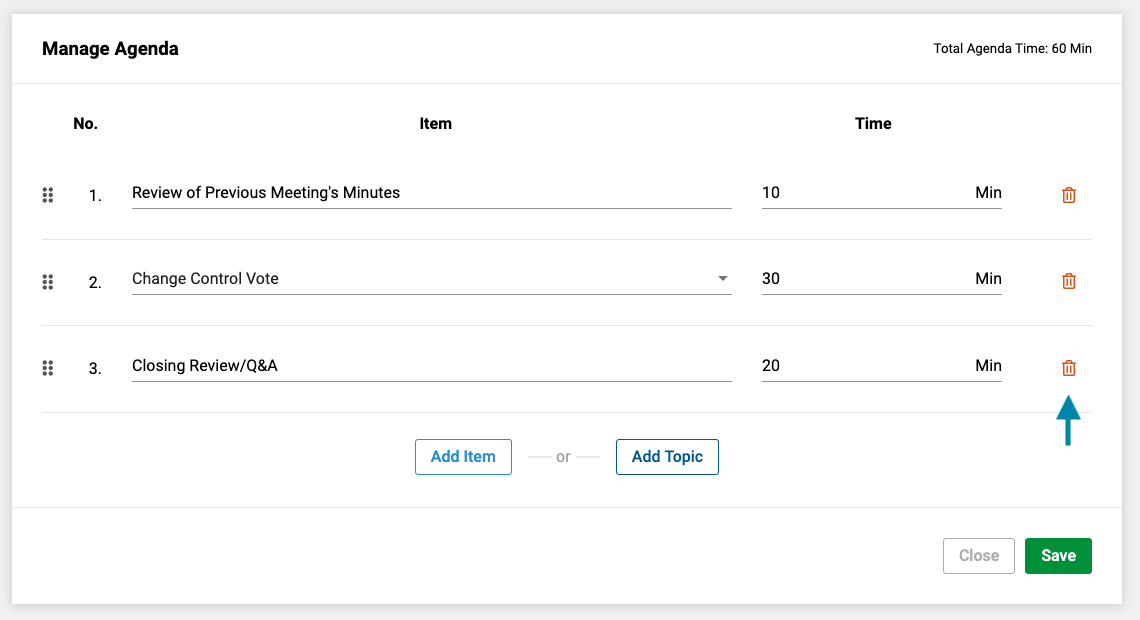
- Lastly, click on the 'Save' button in the lower right corner of the form to save the agenda.
Comments
0 comments
Article is closed for comments.