Important Notes:
- Agendas are comprised of group topics which represent formal topics a group is addressing as well as meeting-specific topics which are only accessible via the meeting agenda.
- Meeting-specific topics do not have additional information associated with them such as detailed descriptions, voting, or files.
- An agenda saved as a template can be loaded into a future meeting and can be further customized for that meeting. To learn more about creating an agenda template, click here.
1. Manually Creating a Meeting Agenda
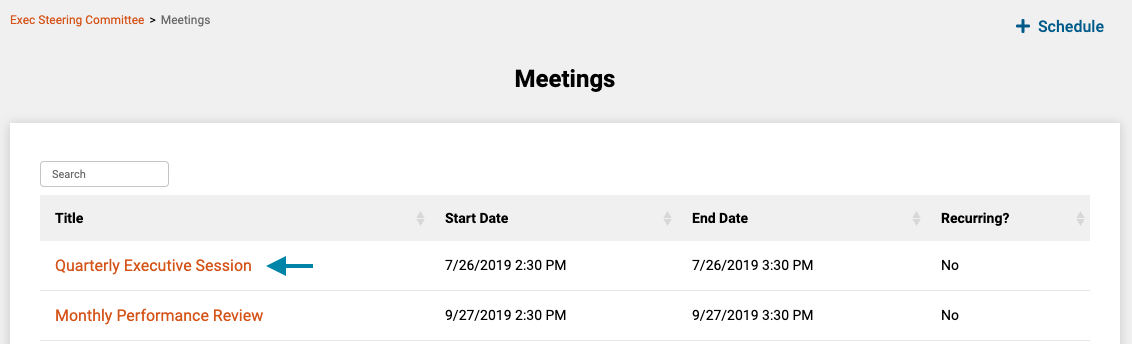
- First, access the meetings list for the current group by clicking on the 'Meetings' link in the header of the application.
Note: You can also access a Meeting by clicking on the meeting title in the 'Meetings' frame on the associated group's home page.

- Next, click on the title of the meeting you wish to create an agenda for, to open the meeting's home page.
- Next click the 'Create/Edit Agenda' icon in the right corner of the 'Agenda' frame on the meeting's home page.

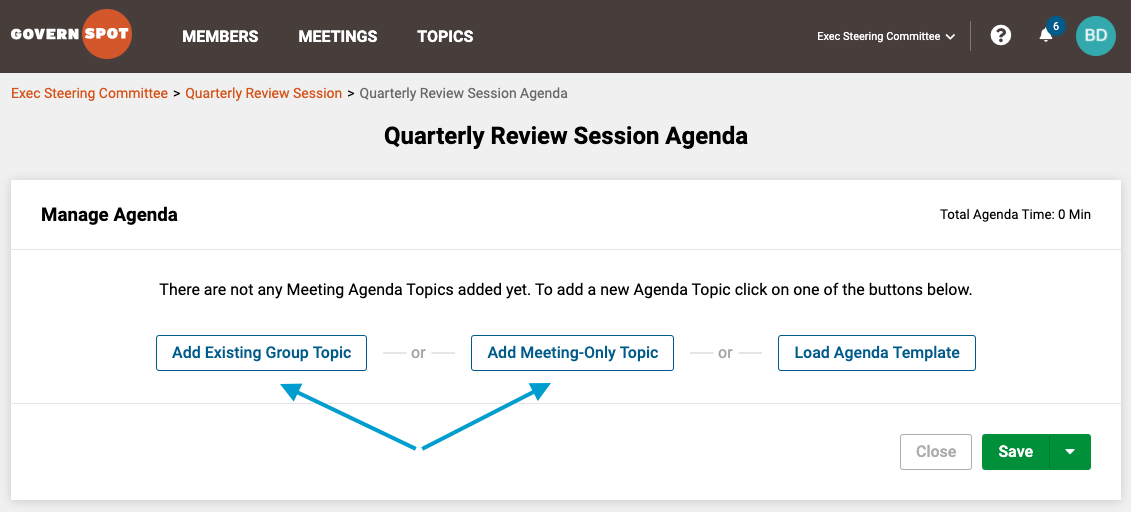
- Next, click either the 'Add Existing Group Topic' button or 'Add Meeting-Only Topic' button to begin creating the agenda.
Note:
- Add Existing Group Topic - A topic already associated with the group. All group topics can be accessed from a group's home page.
- Add Meeting-Only Topic - A topic specific to this meeting such as 'introductions' or 'review of previous minutes'.
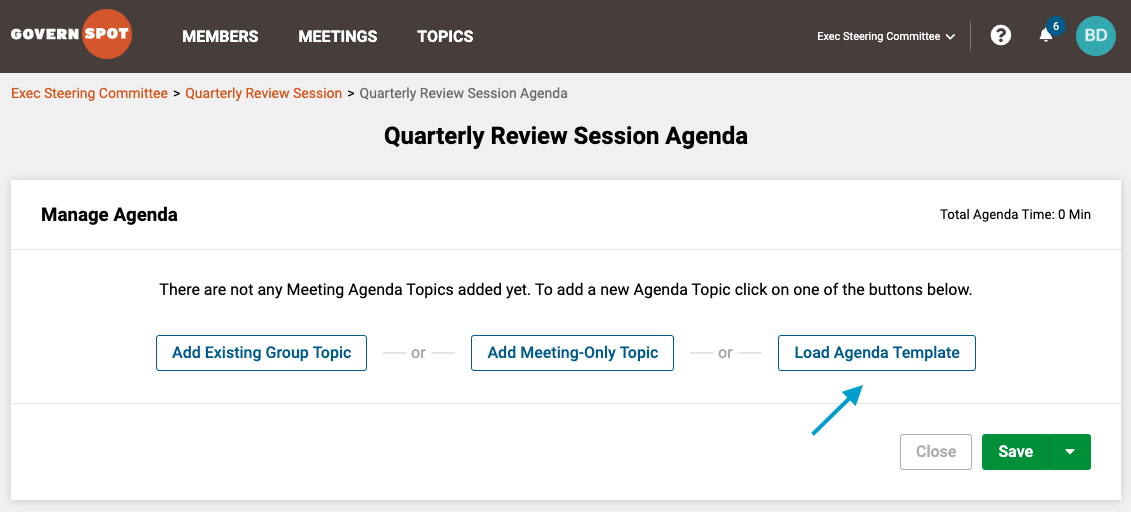
- Load Agenda Template - A previously saved agenda can be loaded in lieu of or in addition to manually adding topics. More information on loading a template is provided below.
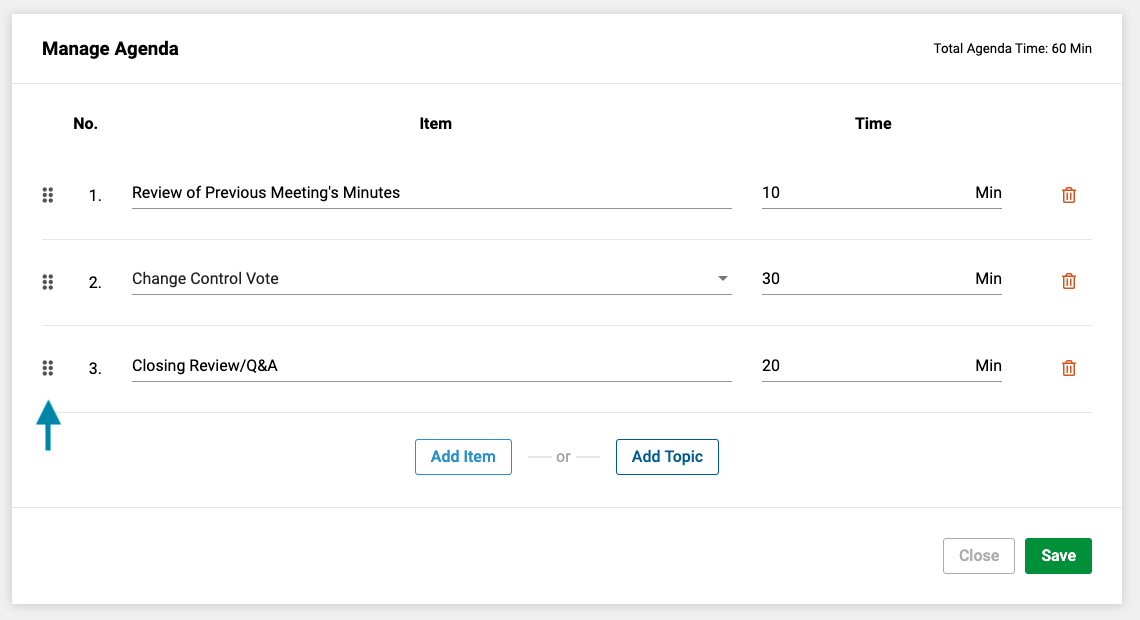
- Next, for each topic added, you may also assign a specific amount of time for it on the agenda. You may also re-order the agenda by click-holding and dragging the 'dot' icon of the desired agenda row and moving it up or down to re-order the topic on the agenda.
- Lastly, click on the 'Save' button in the lower right corner of the form to save the agenda.
2. Loading an Agenda Template
- First, access the meeting's agenda using the directions stated above.
- Next, click on the 'Load Agenda Template' button. Note:
- Loading an agenda will delete any existing topics. You may however add topics or edit the agenda as required after loading the template.
- You cannot load an agenda if any existing items possess associated meeting minutes as those cannot be removed from the agenda.
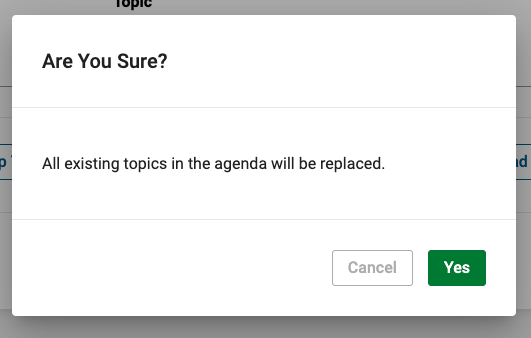
- If existing topics are already added to the agenda, confirm replacement of those items by clicking 'Yes' in the confirmation dialogue.
Comments
0 comments
Article is closed for comments.