Important Notes:
- Although they may appear similar, configuring your authenticator application and resetting your authenticator key are very different:
- Re-Configuring your authenticator application: Use this option when you wish to set up 2FA on a new authenticator application/device without disabling 2FA on the existing application/device. This option can also be used to set up 2FA again on the same device.
- Resetting your authentication key: Use this option when you wish to set up 2FA on a new authenticator application/device and disable 2FA for your User account on any/all existing applications/devices.
Reconfiguring 2FA on Your User Account:
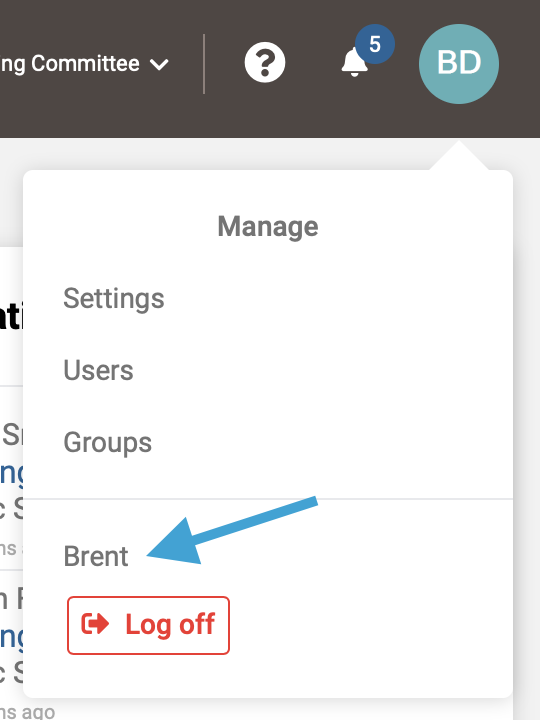
- First, access your User Profile by clicking on your profile icon in the upper right corner and selecting your name from the drop down menu.
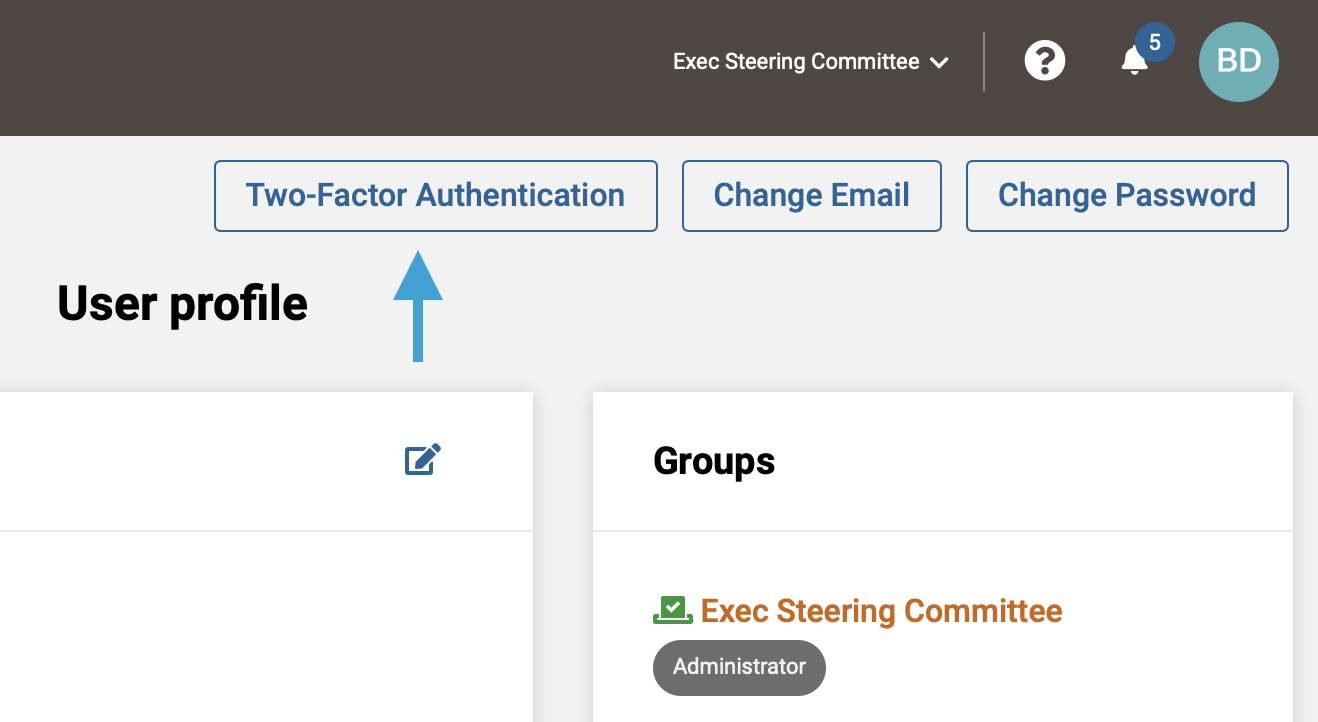
- Next, click the 'Two-Factor Authentication' button above your user profile.
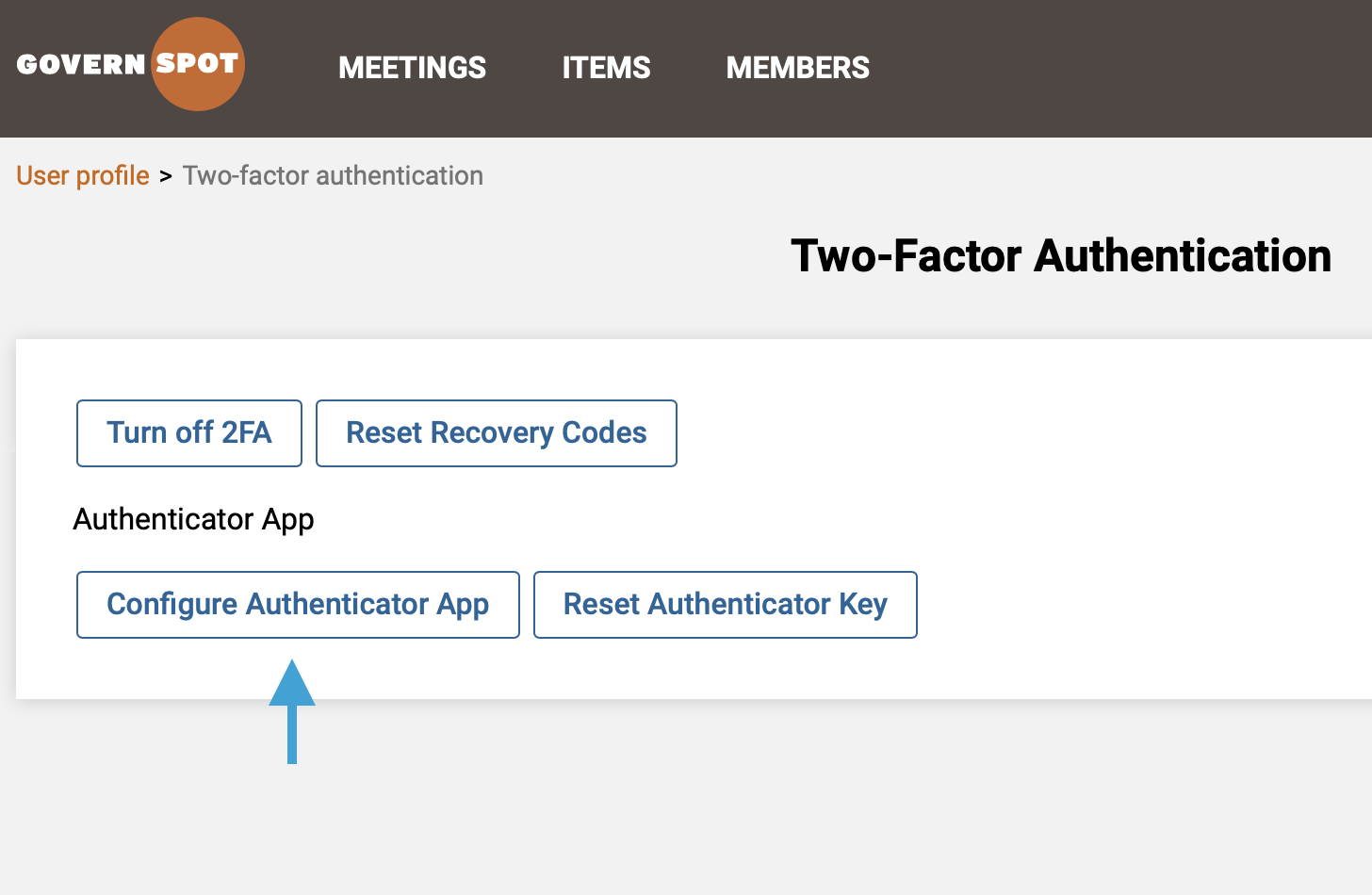
- Next, click the 'Configure Authenticator App' button.
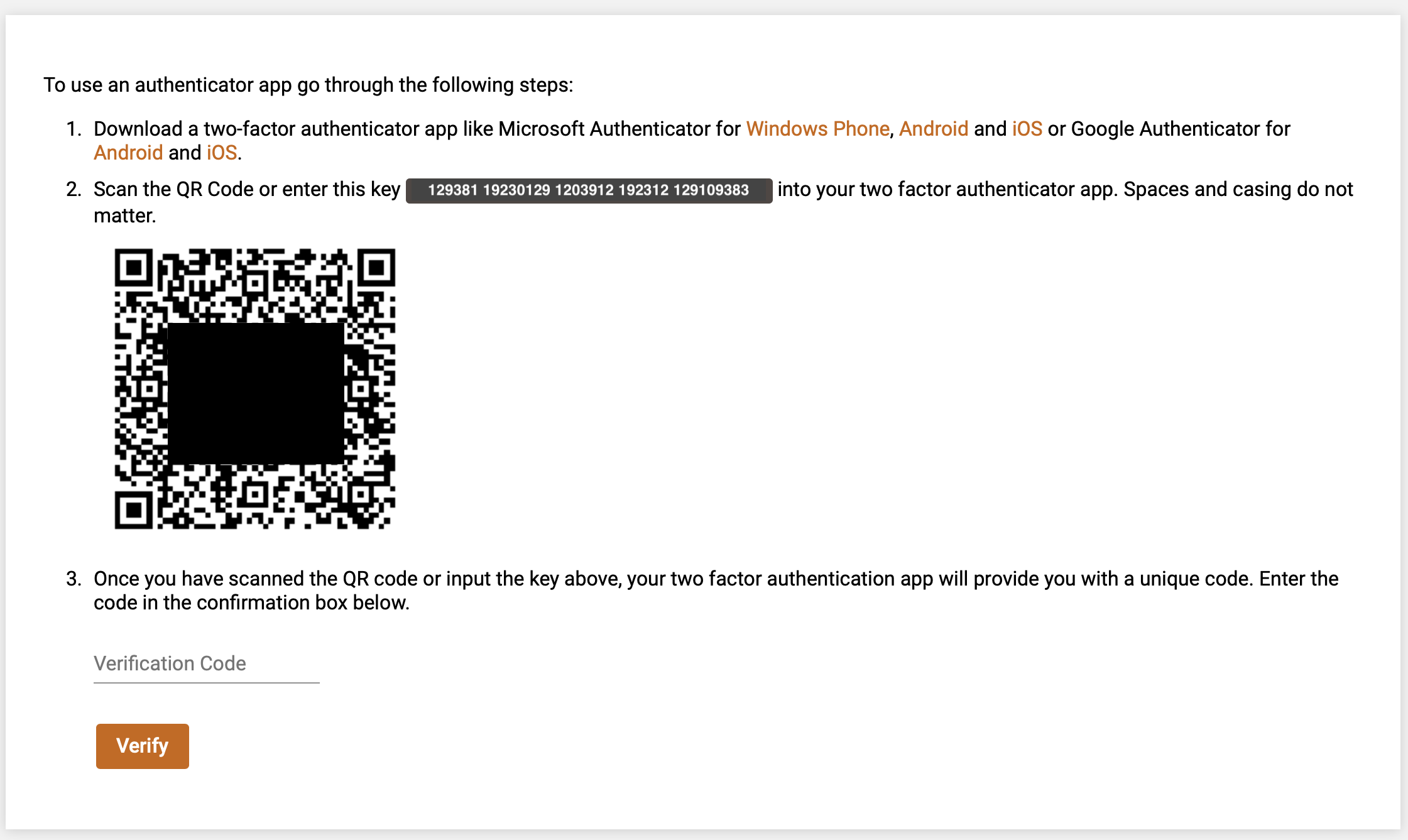
- Next, scan the QR code or enter the key string provided on the screen with your authenticator application. You can use the links provided on this page to download an authenticator application or you may access links to additional authenticator applications here.
- After scanning the QR code or entering the key string, enter the code displayed on the authenticator application for GovernSpot and click the orange 'Verify' button at the bottom of the form to submit the code and complete the set-up process.
Note: The codes provided by the authenticator application change multiple times per minute. If the code changes while you are entering it, you may need to re-enter the updated code to continue.
Note: This process will not reset any of the existing recovery codes associated with the User account.
Resetting 2FA on Your User Account:
- First, access your User Profile by clicking on your profile icon in the upper right corner and selecting your name from the drop down menu.
- Next, click the 'Two-Factor Authentication' button above your user profile.
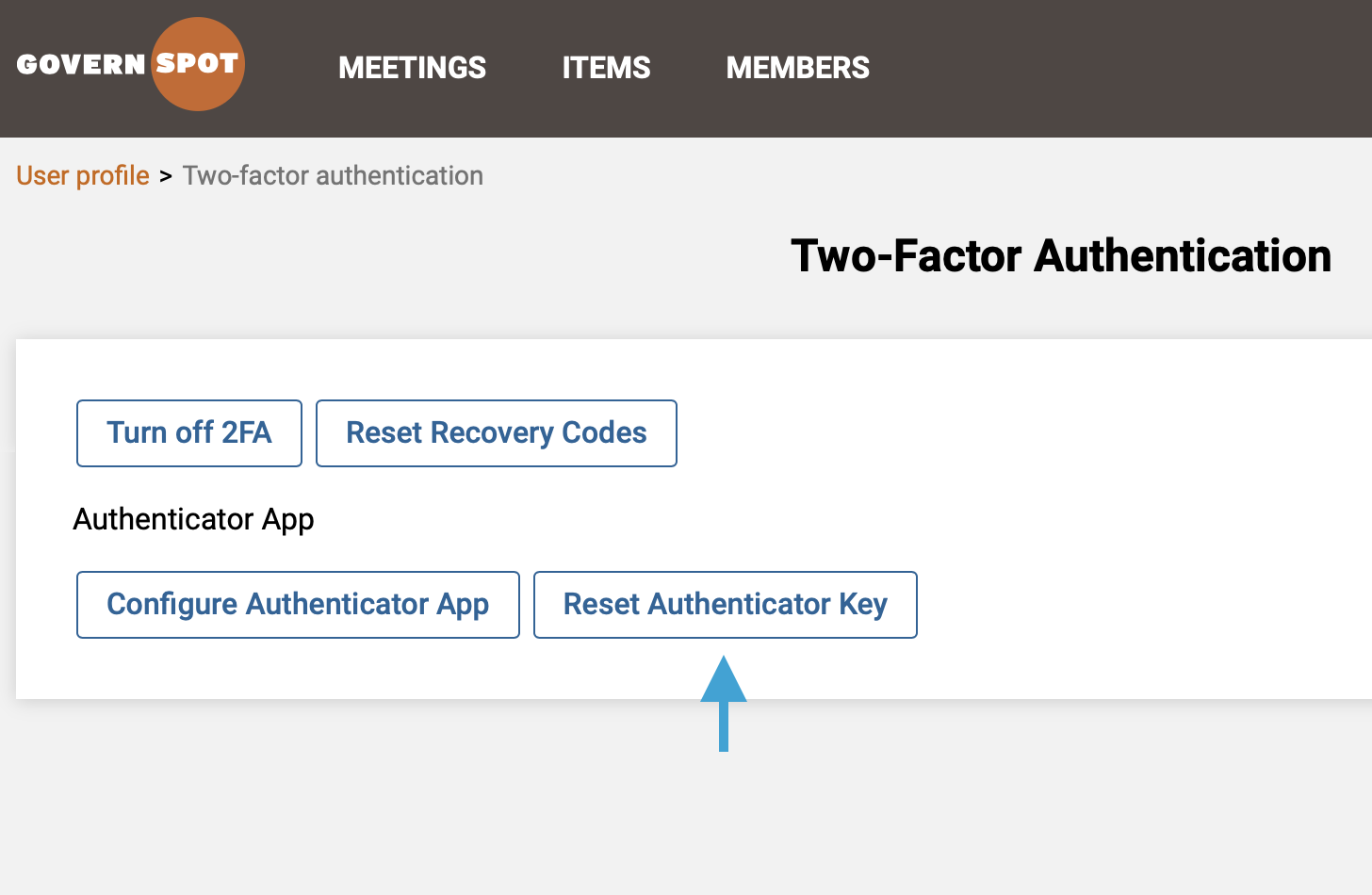
- Next, click the 'Reset Authentication Key' button.
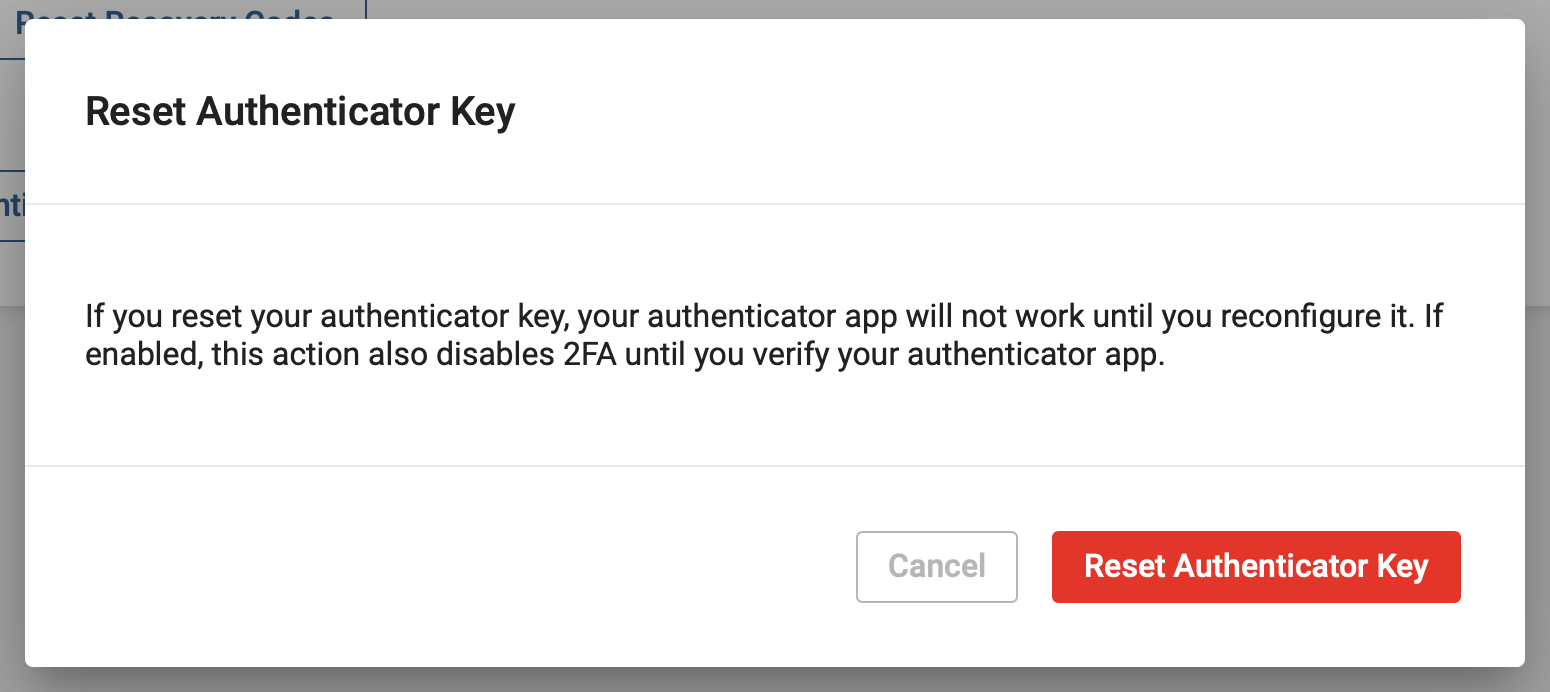
- Next, click on the red 'Reset Authenticator Key' button to confirm that you wish to reset your authentication key and disable the ability for any existing authenticator applications to provide codes to access your User account.
- Next, scan the QR code or enter the key string provided on the screen with your authenticator application. You can use the links provided on this page to download an authenticator application or you may access links to additional authenticator applications here.
- After scanning the QR code or entering the key string, enter the code displayed on the authenticator application for GovernSpot and click the orange 'Verify' button at the bottom of the form to submit the code and complete the set-up process.
Note: The codes provided by the authenticator application change multiple times per minute. If the code changes while you are entering it, you may need to re-enter the updated code to continue.
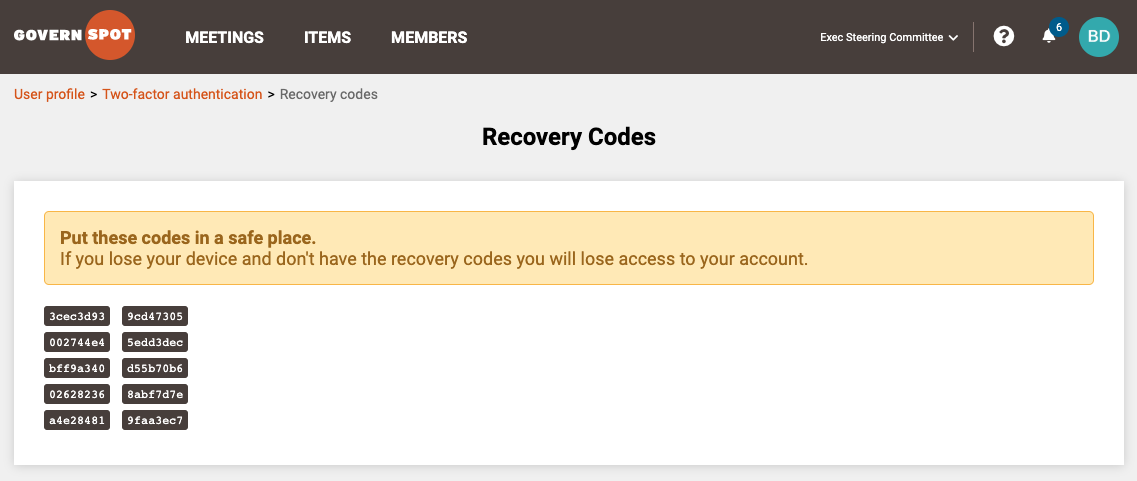
- Lastly, record the recovery codes and store them in a secure place.
Note: Any existing recovery codes previously recorded will no longer work and should be deleted/discarded.
Comments
0 comments
Article is closed for comments.