Important Notes:
- Before activating 2-Factor Authentication (2FA) on your User account, please read this introduction to 2FA in GovernSpot.
- If you have enabled 2FA on your GovernSpot account in the past, you will simply need to re-configure your authentication mechanism - instructions to do so are located here.
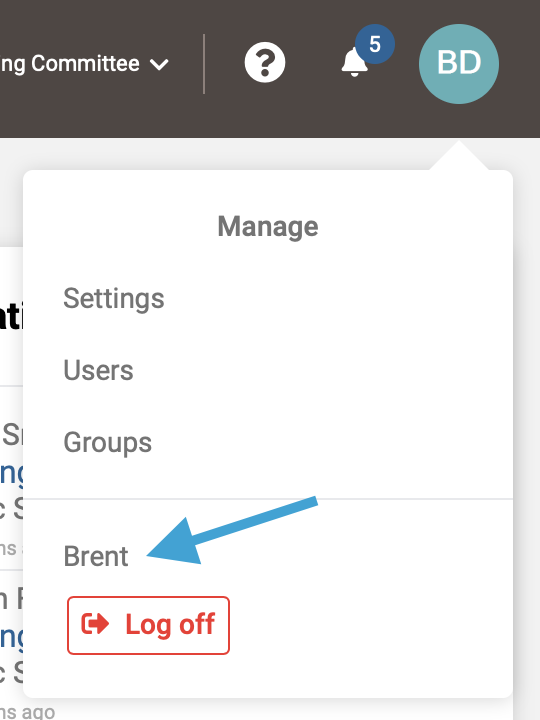
- First, access your User Profile by clicking on your profile icon in the upper right corner and selecting your name from the drop down menu.
Note: Accessing your User Profile from the Member List will bring up your public profile which will not contain the button for activating 2FA.
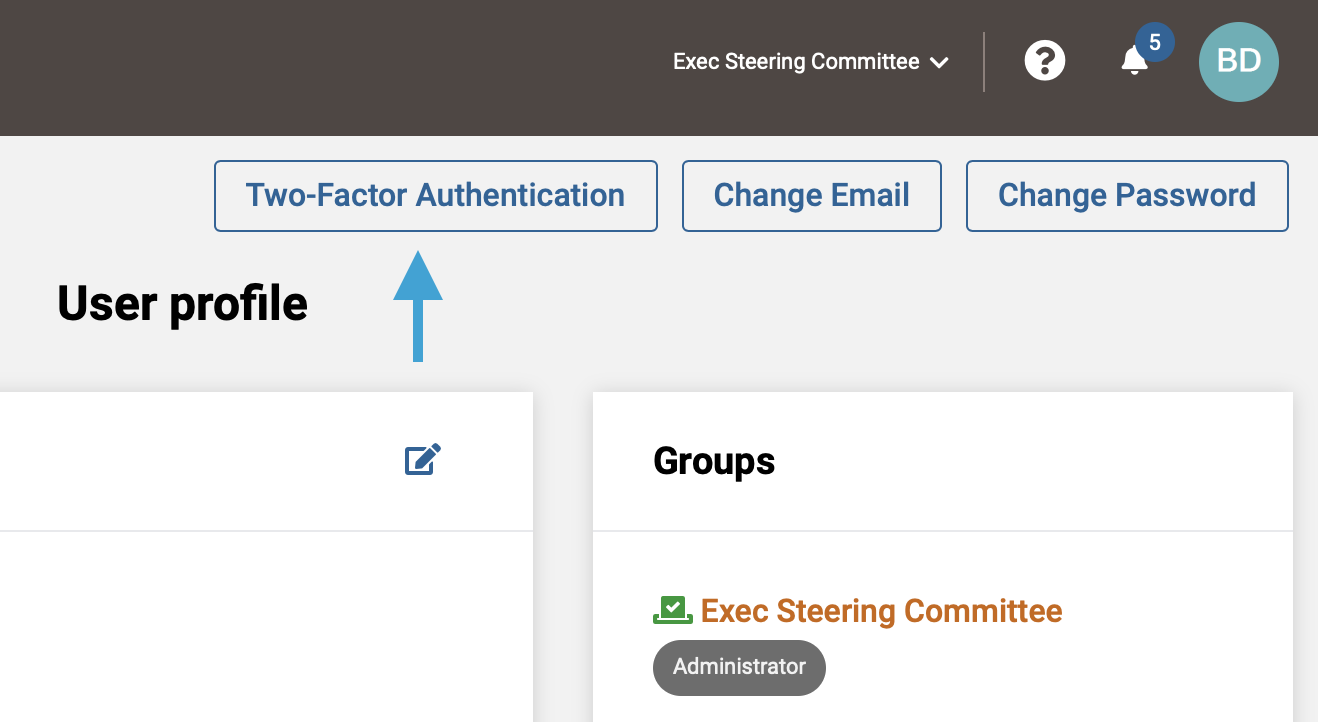
- Next, click the 'Two-Factor Authentication' button above your user profile.
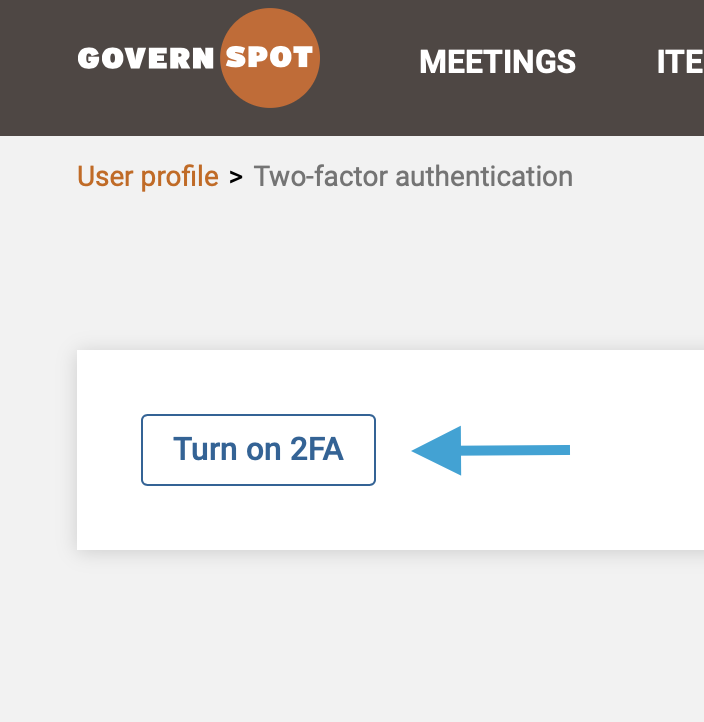
- >Next, click the 'Turn on 2FA' button.
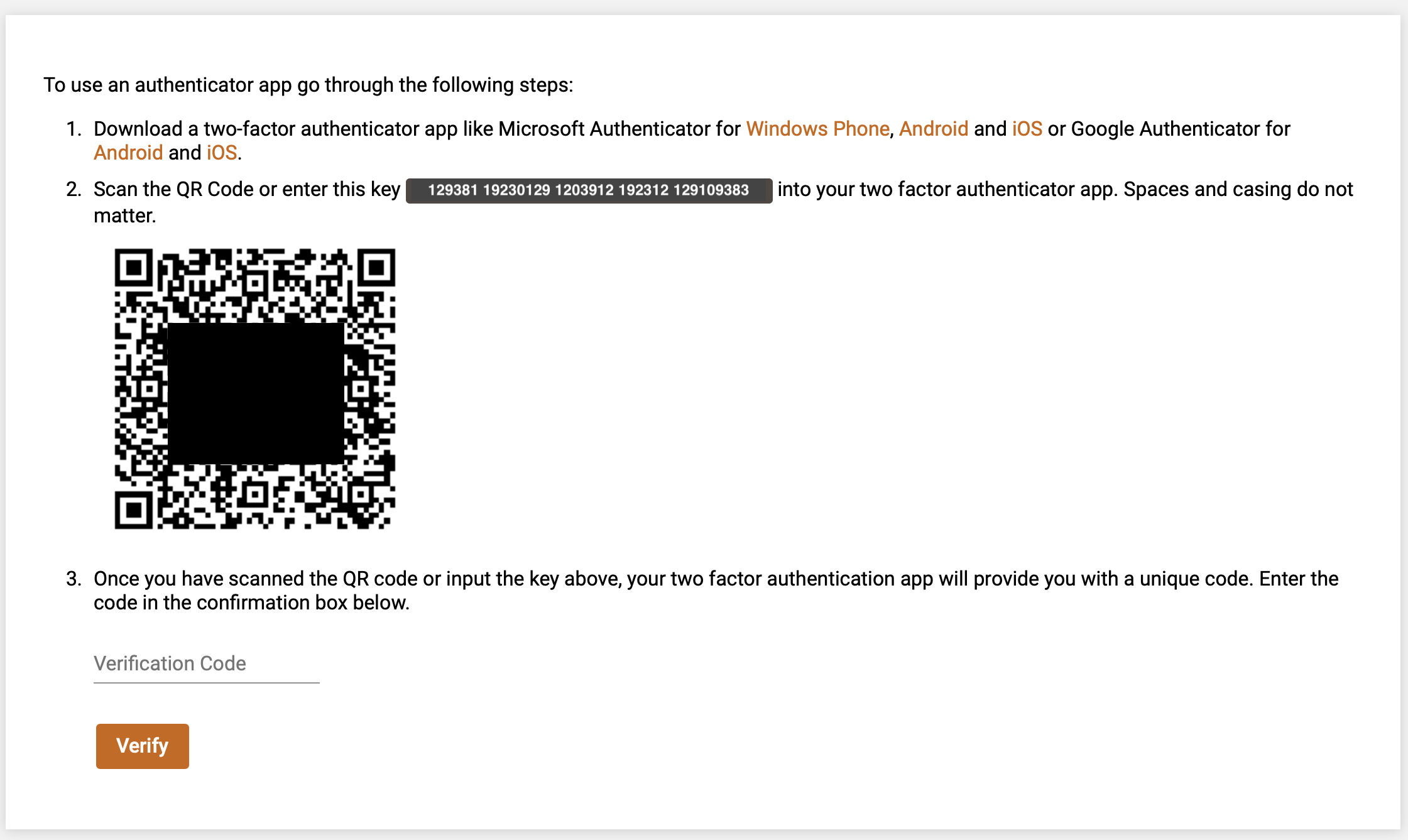
- Next, scan the QR code or enter the key string provided on the screen with your authenticator application. You can use the links provided on this page to download an authenticator application or you may access links to additional authenticator applications here.
- After scanning the QR code or entering the key string, enter the code displayed on the authenticator application for GovernSpot and click the orange 'Verify' button at the bottom of the form to submit the code and complete the set-up process.
Note: The codes provided by the authenticator application change multiple times per minute. If the code changes while you are entering it, you may need to re-enter the updated code to continue.
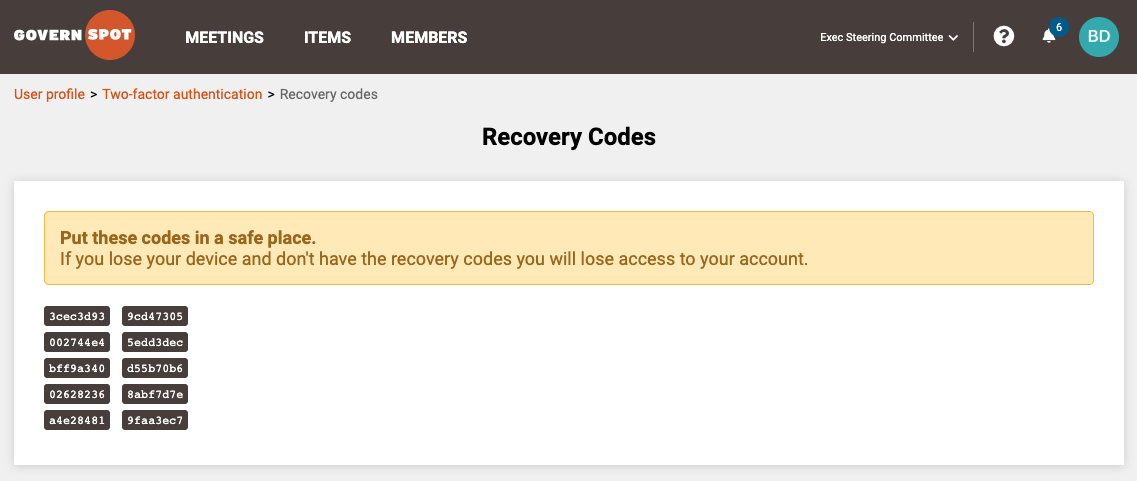
- Lastly, record the recovery codes and store them in a secure place.
Note: The recovery codes are one-time use codes to regain access to your account in the event your authenticator application is unavailable. The system will warn you when you are running low on recovery codes. Instructions for generating new recovery codes can be found here.
- After enabling 2FA, you will need to provide the newest code from the authenticator application each time you log on. However, GovernSpot does not possess a session timeout therefore you will only be prompted when you log in from a new device or browser, or if you log out of your current session.
Comments
0 comments
Article is closed for comments.