Important Notes:
- When an action item is re-assigned, the original assignee will receive an email notification stating that the action item was re-assigned and the new assignee will receive an email notification that they have been assigned an action item.
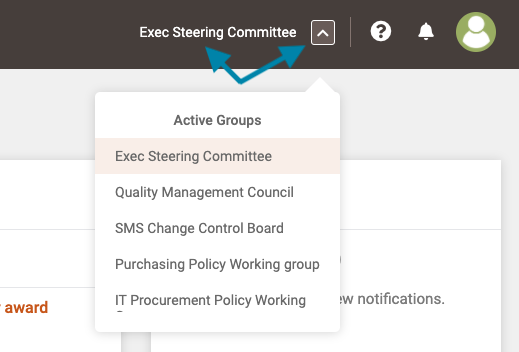
- First, click on the name of the group in the upper right corner of the application to open the group page or, if you wish to access a different group, click on the arrow box and select the desired group name.
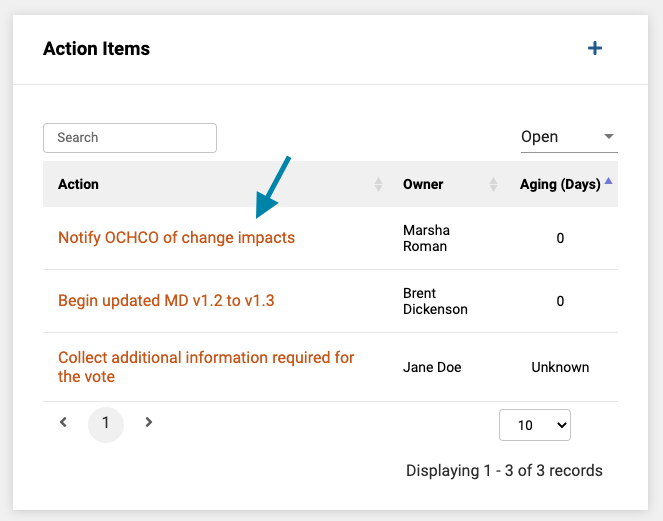
- Next, once the group page opens, click on the name of the action item you wish to reassign.
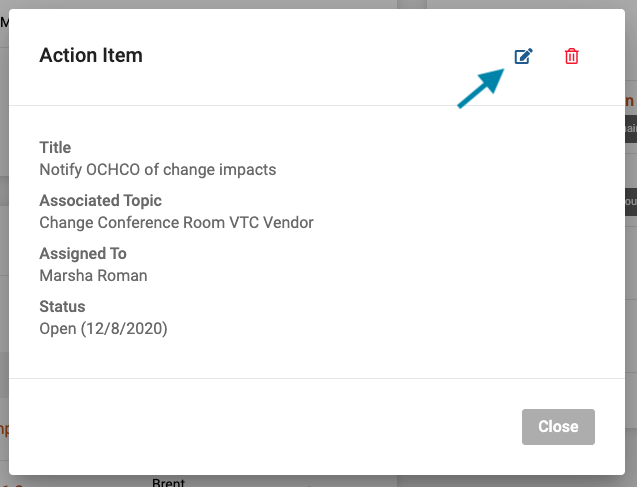
- Next, click on the 'edit' icon in the upper right corner of the action item form.
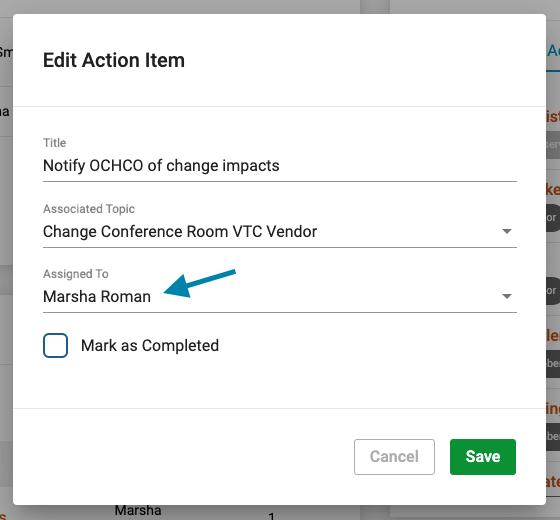
- Lastly, select another group member to assign the action item to and click the green 'Save' button in the bottom right corner of the form.
Comments
0 comments
Article is closed for comments.