Important Notes:
- The settings described in this article are only accessible by users with administrative rights.
- Paid accounts will be automatically billed to the primary payment method each month as designated by the administrative user.
- If a payment fails, the system will automatically retry on a periodic basis. However, you may manually pay an open invoice from the Payment History page.
1. Viewing Invoice History:
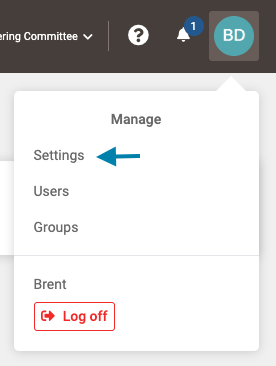
- First, click on the profile icon in the upper right corner and then select the 'Settings' link in the drop down menu.
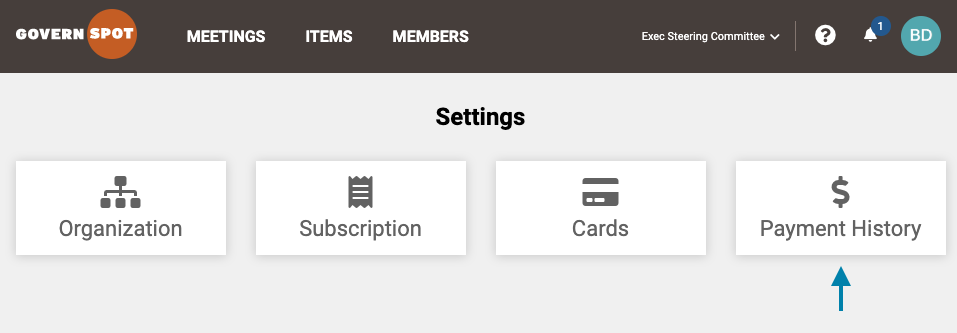
- Next, click on the 'Payment History' card on the settings page.
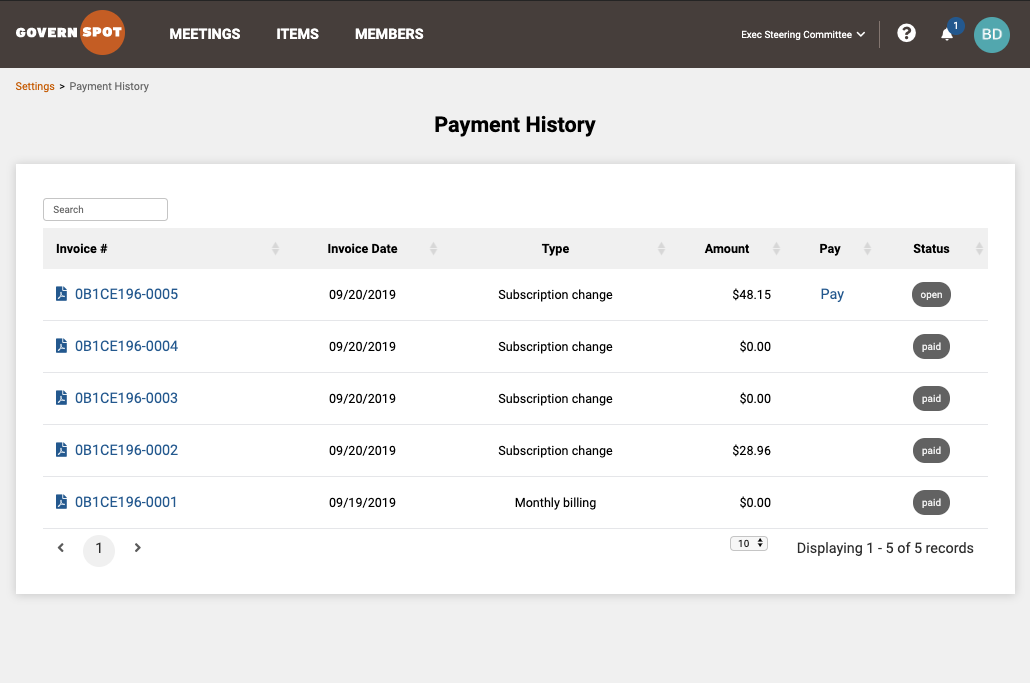
- From the Payment History page, you can view invoice and payment history as well as access a PDF copy of an invoice by clicking on the invoice number.
2. Paying an Unpaid/Pending Invoice
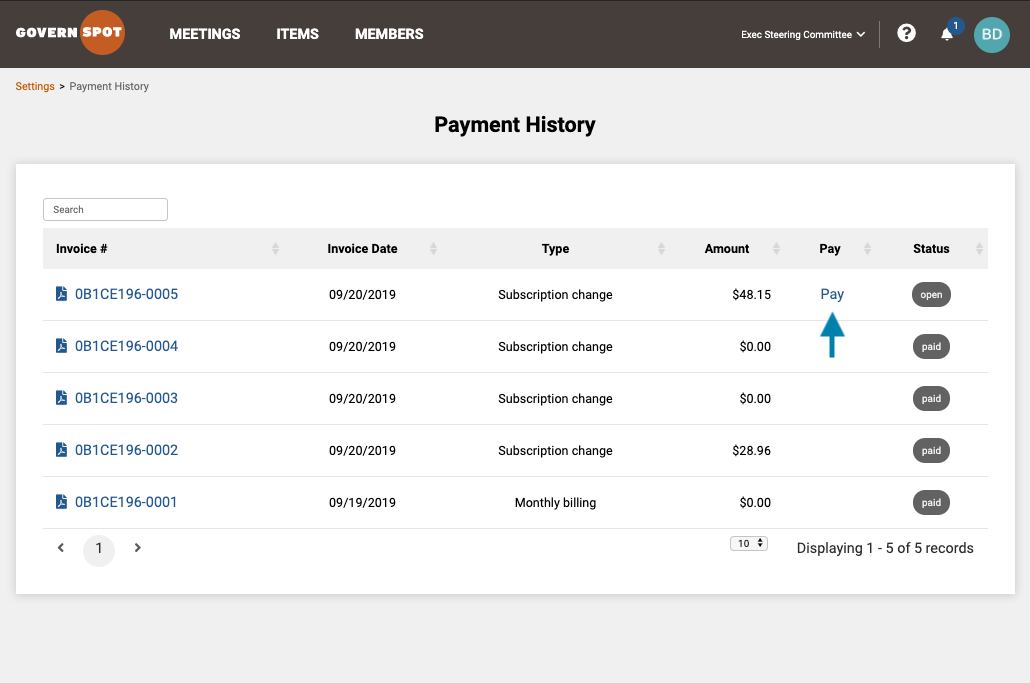
- First, access the Payment History page by following the instructions above. Next, click the 'Pay' link on the row of the invoice you wish to pay.
- Next, on the Checkout page, confirm or change the organizational information or payment method and click the 'Pay' button to complete the subscription change.
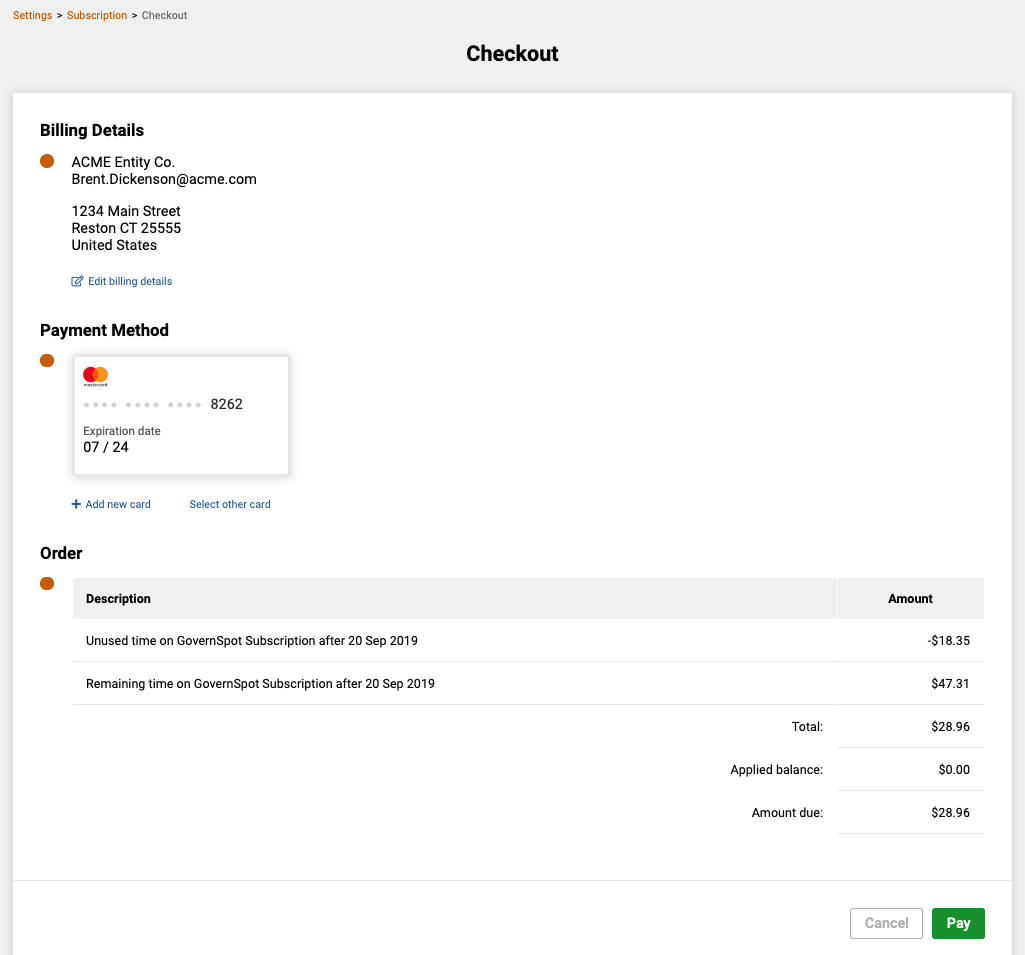
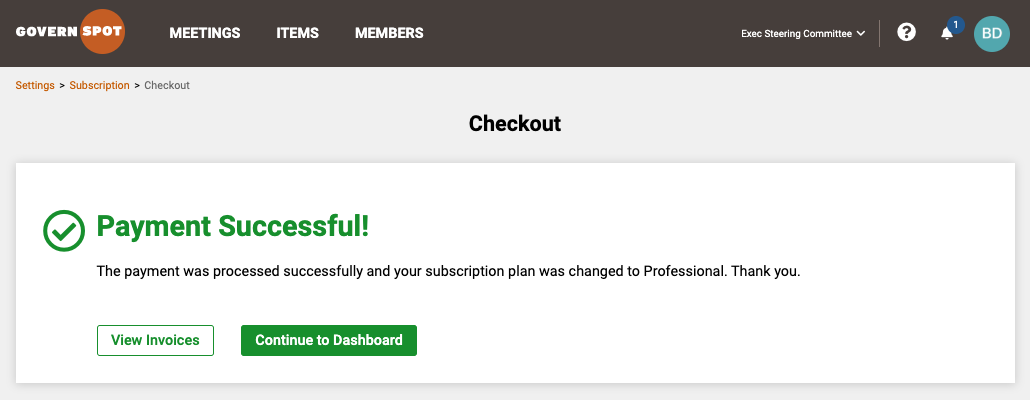
- If successful, you will receive a confirmation message. Note:
- If the invoice was associated with a subscription change and payment is not successful, you can either either cancel the change from the Subscription page or update the payment method and try again.
- If the invoice was associated with a recurring monthly charge and payment is not successful, you can update the payment method and try again for up to 30 days before the account will be suspended for regular users and 45 days for users with administrative rights.
Comments
0 comments
Article is closed for comments.