Important Notes:
- The settings described in this article are only accessible by users with administrative rights.
1. Accessing Subscription Settings:
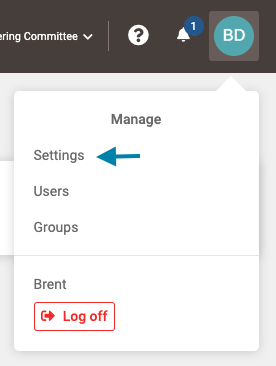
- First, click on the profile icon in the upper right corner and then select the 'Settings' link in the drop down menu.
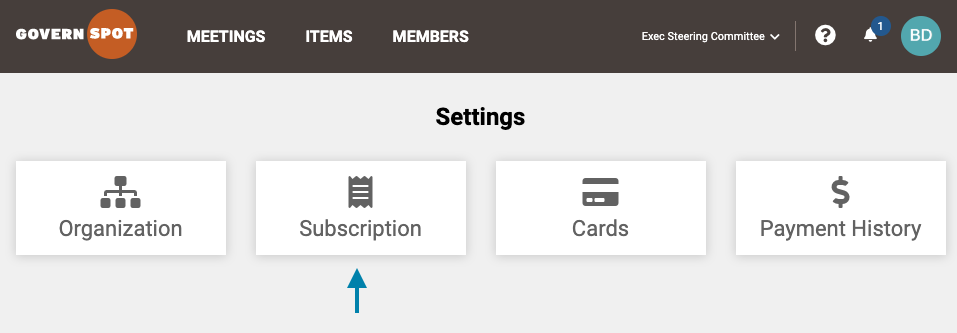
- Next, select the 'Subscription' card on the Settings page.
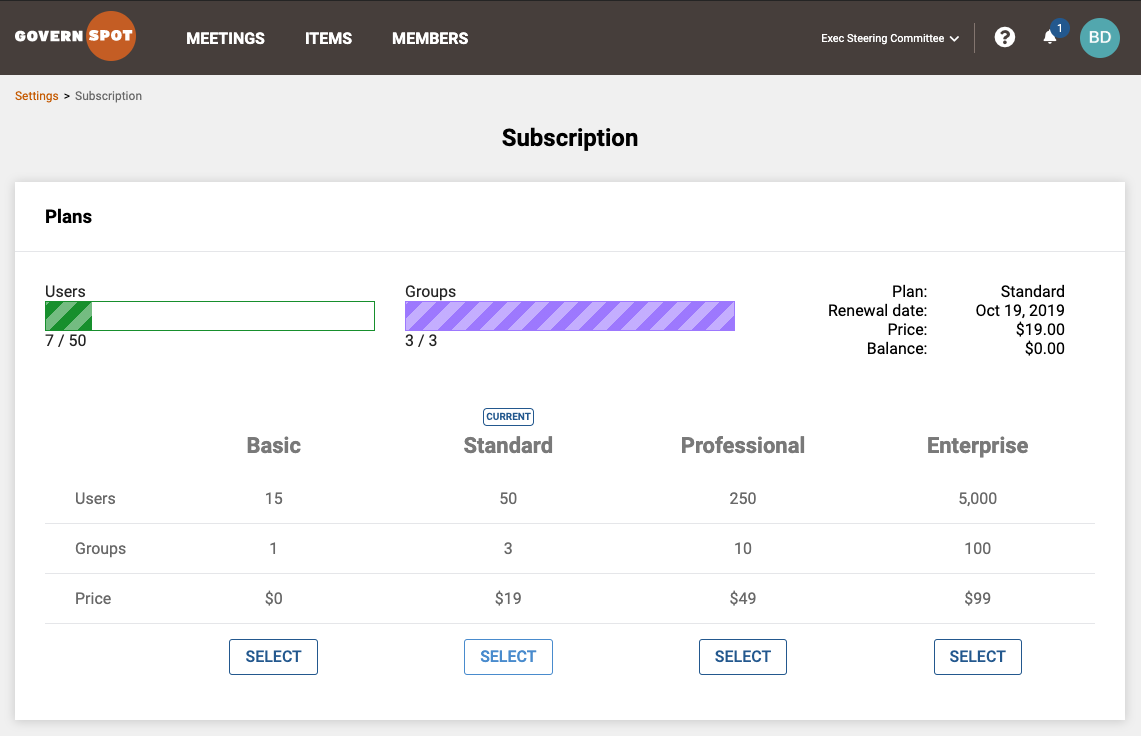
- On this page, you can view which plan you currently subscribe to, your current user and group counts relative to your license limits, current pricing, and any credits your account may possess. You can also change your subscription level from this page (see below).
2. Changing Your Subscription Level:
Note: If you upgrade your subscription, the system will prorate any additional charges for the remaining time in the current billing period. If you downgrade your subscription, the system will provide a credit for any difference between the old and new plan which will automatically be applied to future invoices.
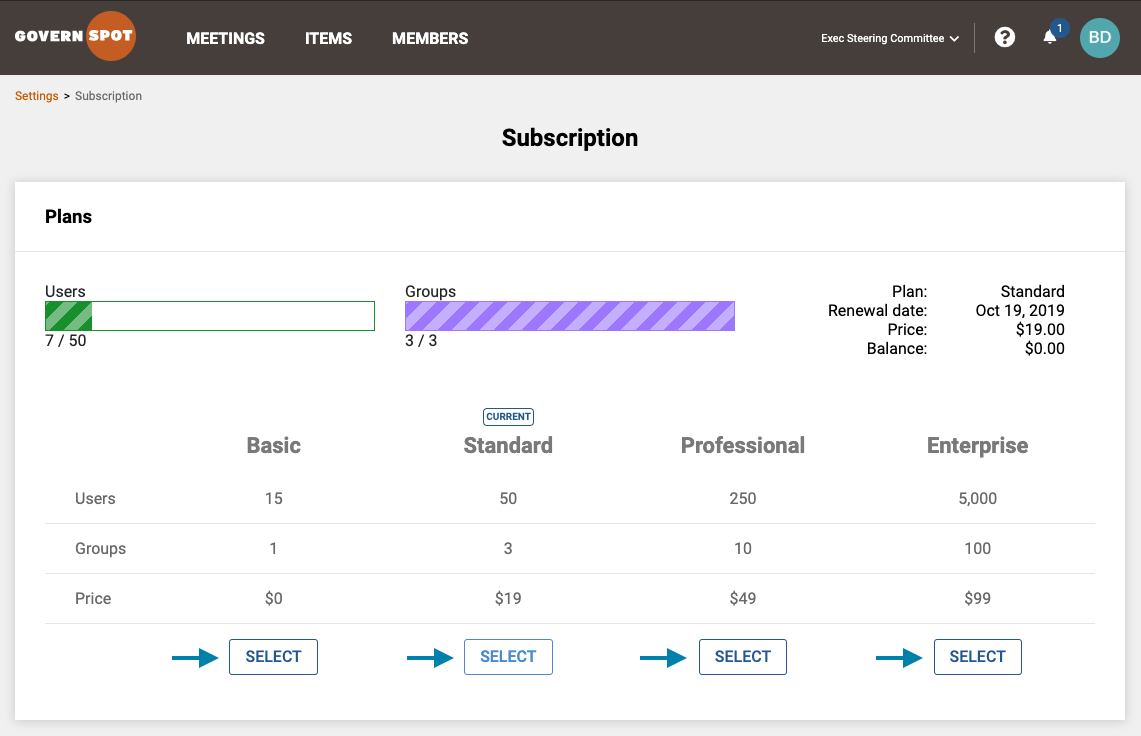
- First, from the subscription page (see above for access instructions), click the 'Select' button under the desired plan you wish to change to.
- Next, on the Checkout page, confirm or change the organizational information or payment method and click the 'Pay' button to complete the subscription change.
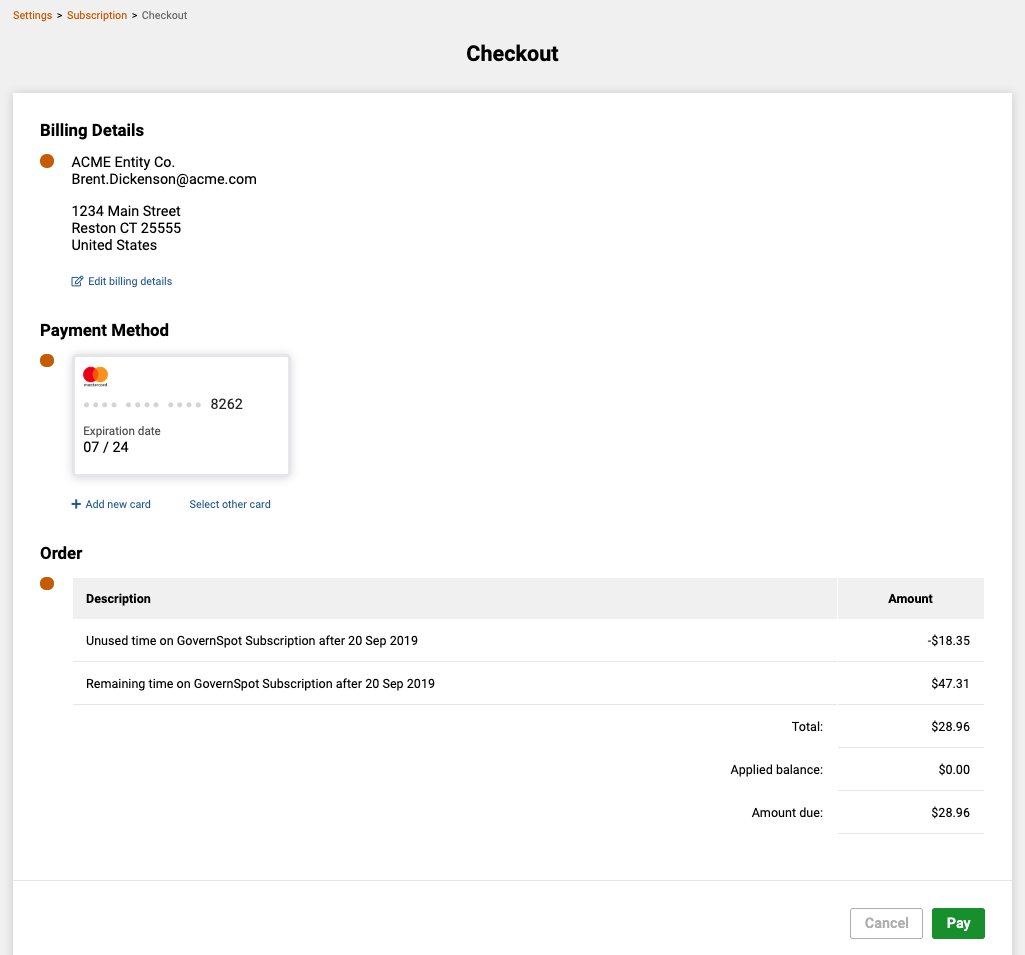
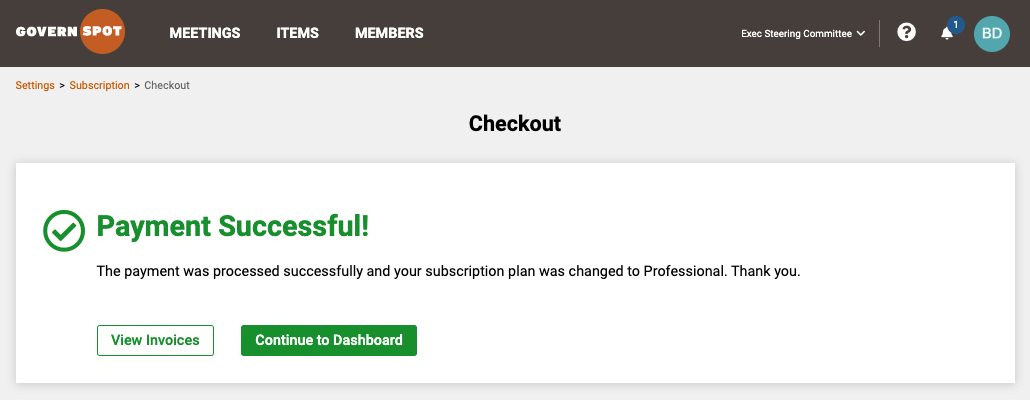
- If successful, you will receive a confirmation message. If the payment is not successful, you can either either cancel the change from the Subscription page or pay the open invoice available on the Payment History page.
Comments
0 comments
Article is closed for comments.