Important Notes:
- The settings described in this article are only accessible by users with administrative rights.
- The GovernSpot system does not store your payment information in the system. All payment information is stored by our payment processing provider, Stripe.
1. Accessing Payment Methods:
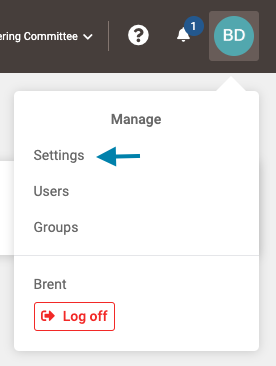
- First, click on the profile icon in the upper right corner and then select the 'Settings' link in the drop down menu.
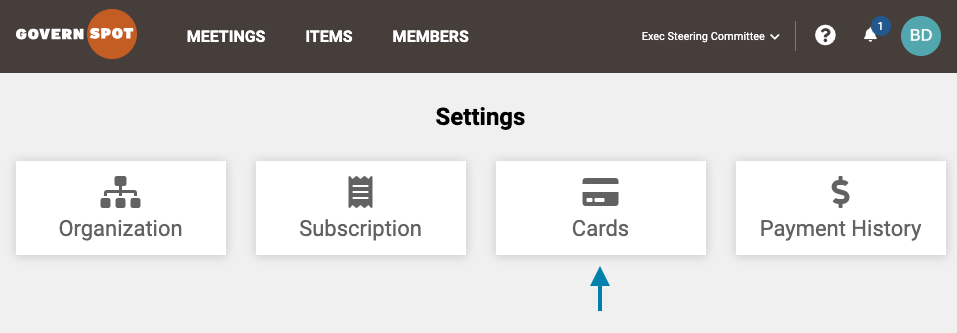
- Next, click on the 'Cards' card on the settings page.
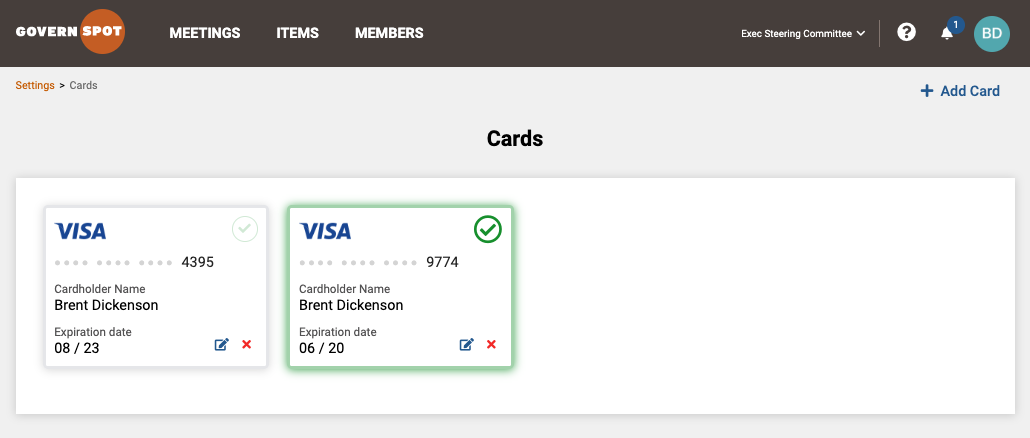
- The available payment cards will be displayed.
2. Adding a New Payment Method:
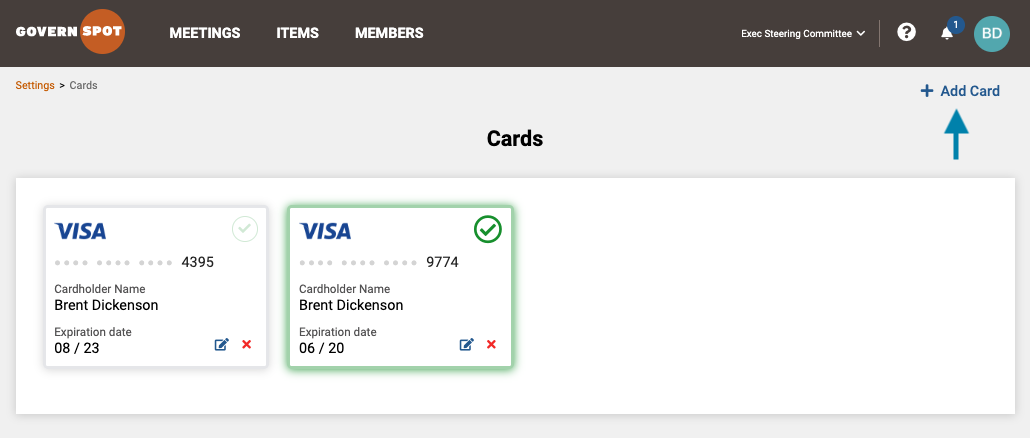
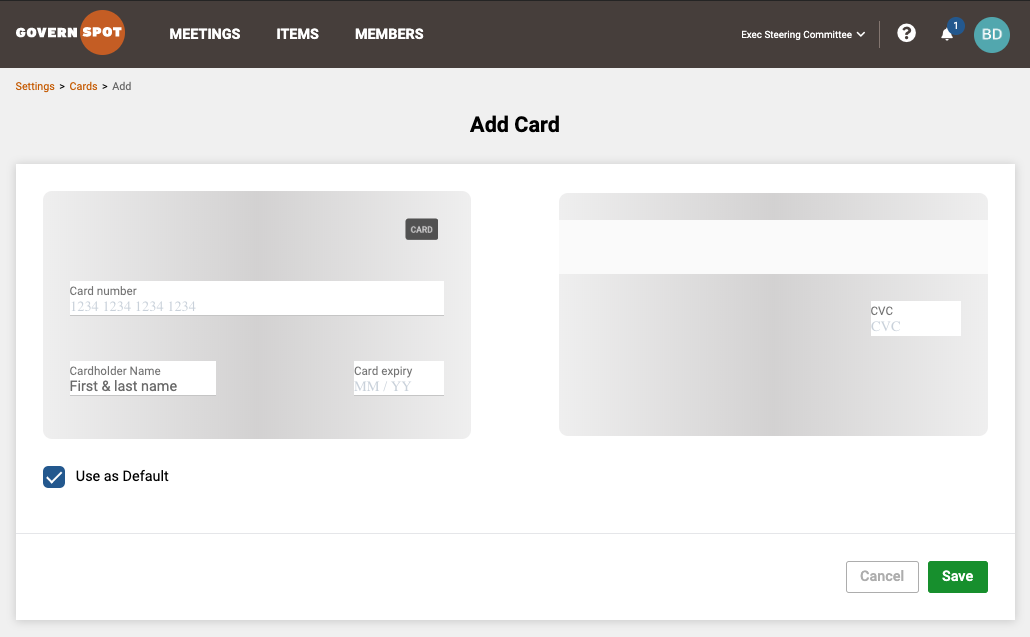
- First, access the Payment Cards page following the instructions above. On the Cards page, click the 'Add Card' link in the upper right area of the page.
- Next, enter the desired card details and click the 'Save' button to complete the process of adding a card.
Note: Only one card may be set as the default, or primary, card. Setting a new card will change the status of any existing default card to a backup card.
3. Updating an Existing Payment Method:
- First, access the Payment Cards page following the instructions above. On the Cards page, click the 'Edit Card' link in the upper right area of the page.
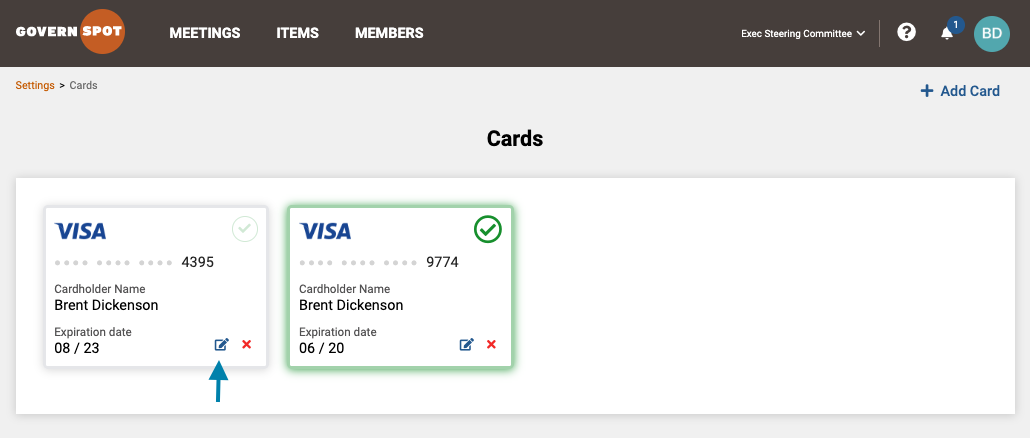
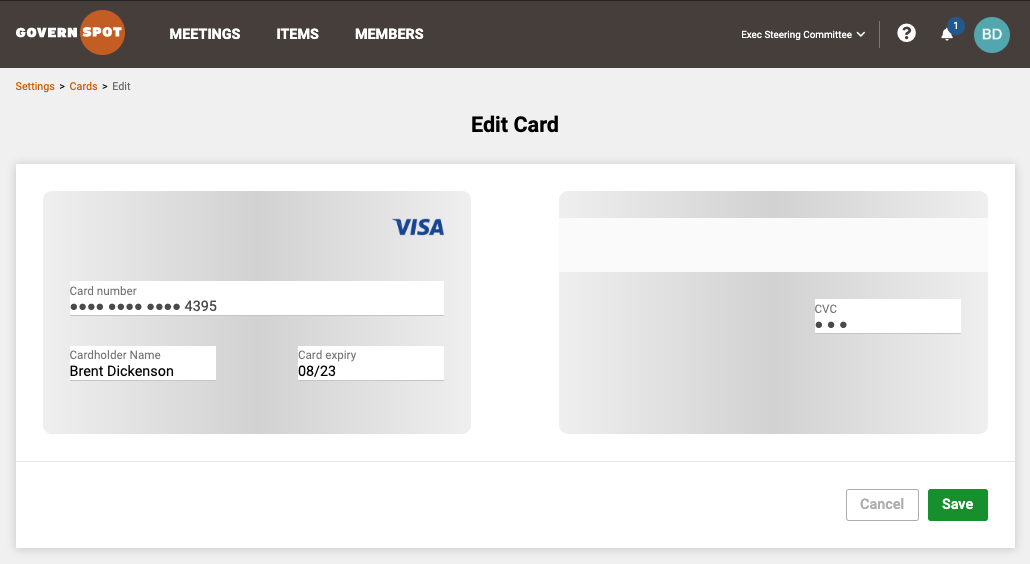
- Next, edit the card details as needed and click the 'Save' button to complete the card update process.
4. Changing the Default Payment Card:
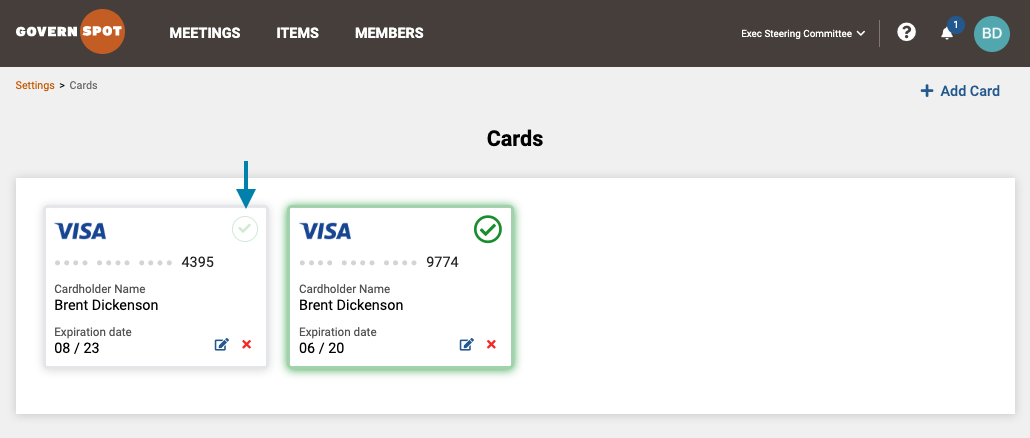
First, access the Payment Cards page following the instructions above. On the Cards page, click the green 'Checkmark' on the card you wish to set as the default, or primary, card.
Note: Only one card may be set as the default, or primary, card. Setting a new card will change the status of any existing default card to a backup card.
5. Deleting a Payment Card:
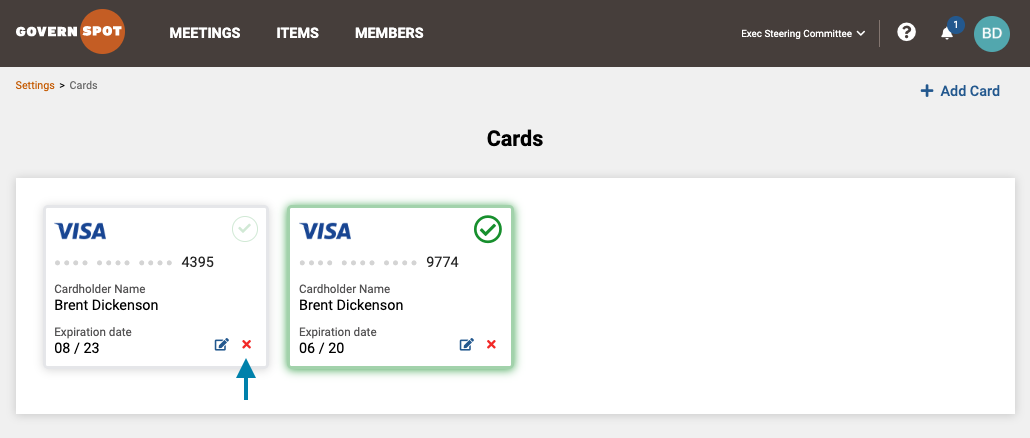
First, access the Payment Cards page following the instructions above. On the Cards page, click the red 'X' on the card you wish to delete.
Comments
0 comments
Article is closed for comments.