Important Notes:
- There are 2 ways to create a meeting for a group - a quick single meeting form as well as a more advanced form for scheduling recurring meetings.
- Only a group member with the role of group Chair or group Administrator can schedule meetings for a group.
A. Scheduling a Meeting (Quick Form)
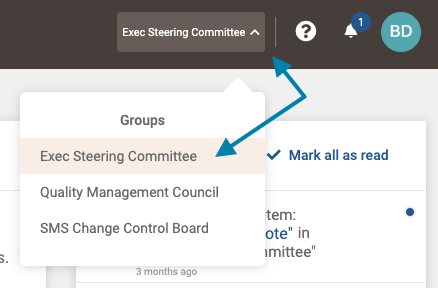
- First, select the group you wish to schedule a meeting for from the group selection menu in the upper right area of the application.
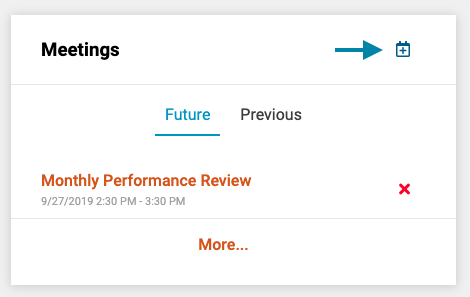
- Next, in the 'Meetings' frame on the group's home page, click the 'Schedule Meeting' icon in the upper right corner of the frame.
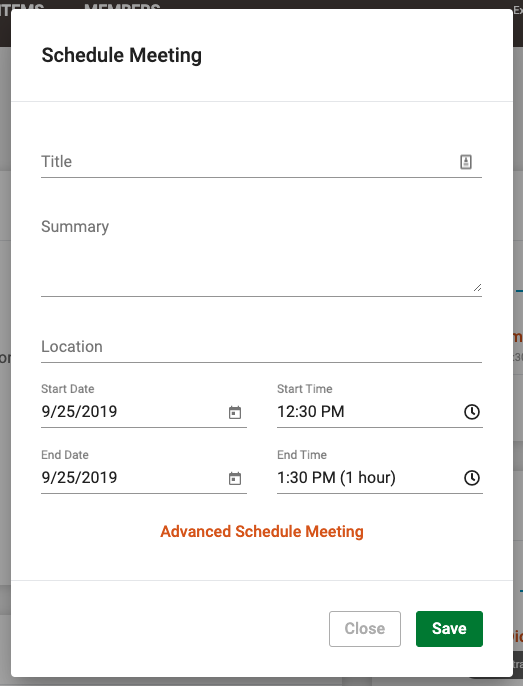
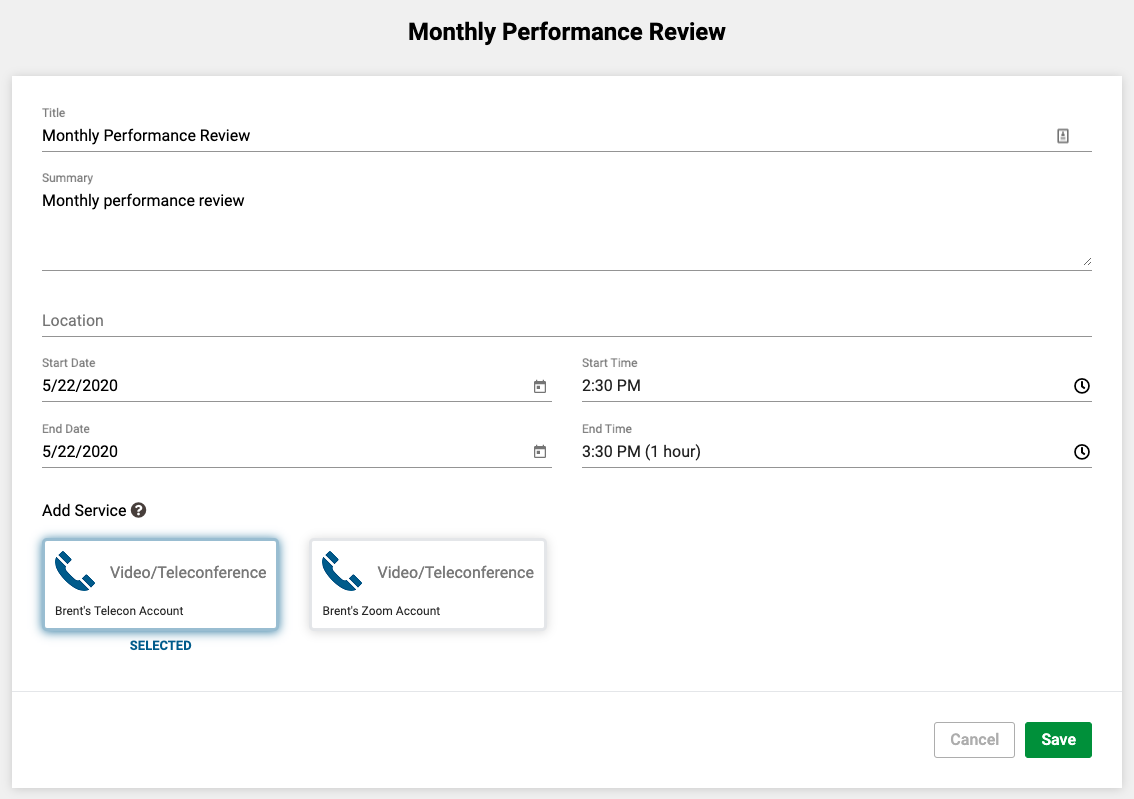
- Lastly, enter the meeting details on the 'Schedule Meeting' form that opens and click the 'Save' button to schedule the meeting. All members of the associated group will automatically be invited to the meeting.
Note: If you wish to create a recurring meeting, click the 'Advanced Schedule Meeting' link at the bottom of the form to open the advanced meeting scheduling form, or follow the instructions below for accessing the advanced meeting scheduling form directly.
B. Scheduling a Meeting/Meeting Series (Advanced Form)
- First, access the meetings list for the current group by clicking on the 'Meetings' link in the header of the application.

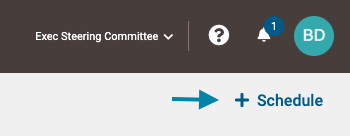
- Next, click the '+ Schedule' button in the upper right area of the Meetings List page.
- Lastly, complete the form and click the green 'Save' button in the lower right corner of the form.
Notes:
- You may optionally select 'Turn off email notifications' which will stop the system from sending out invitations, if you are not ready to send an invitation or if you have created meeting invites outside of GovernSpot. If this box remains unchecked, all members of the currently active group will be invited to the meeting series (the active group is displayed on the right side of the application header).
- Because of the way GovernSpot links certain data to a meeting, such as agendas and minutes, once a meeting series is created, it can only be modified or cancelled by modifying and cancelling the individual meetings that are created.
- If you have previously saved external meeting service information, you will see and be able to select from your saved accounts. Doing so will automatically populate or append the information to the location field when sending the invitations to members and display on the meeting page.
Comments
0 comments
Article is closed for comments.