Important Notes:
- Meeting Minutes are accessed from a meeting's home page, which provides visibility and access to meeting details such as the agenda, who attended, and the minutes from the meeting.
- You can also add a meeting minute directly from a topic page if the topic is associated with a meeting (added to the agenda).
A. Adding or Editing Meeting Minutes (From the Meeting)
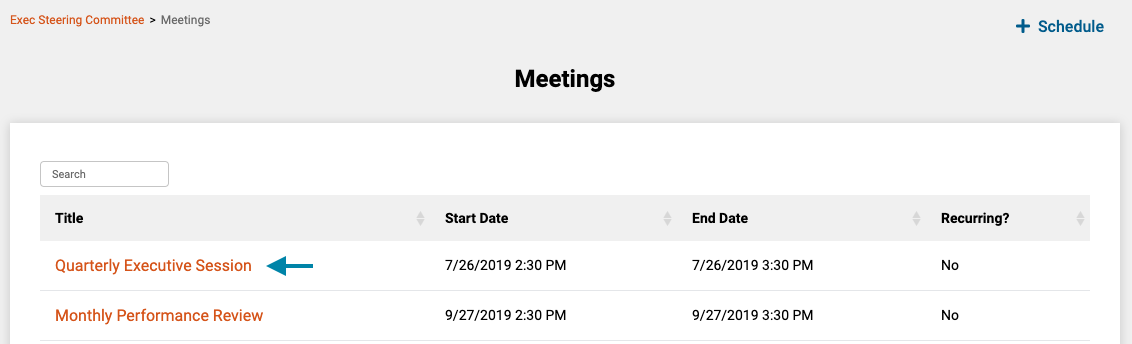
- First, access the meetings list for the current group by clicking on the 'Meetings' link in the header of the application.
Note: You can also access a Meeting by clicking on the meeting title in the 'Meetings' frame on the associated group's home page.

- Next, click on the title of the meeting you wish to add or edit minutes for, to open the meeting's home page.
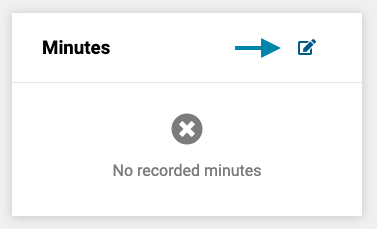
- Next, in the 'Minutes' frame on the meetings page, click the add/edit minutes icon to open the minutes form.
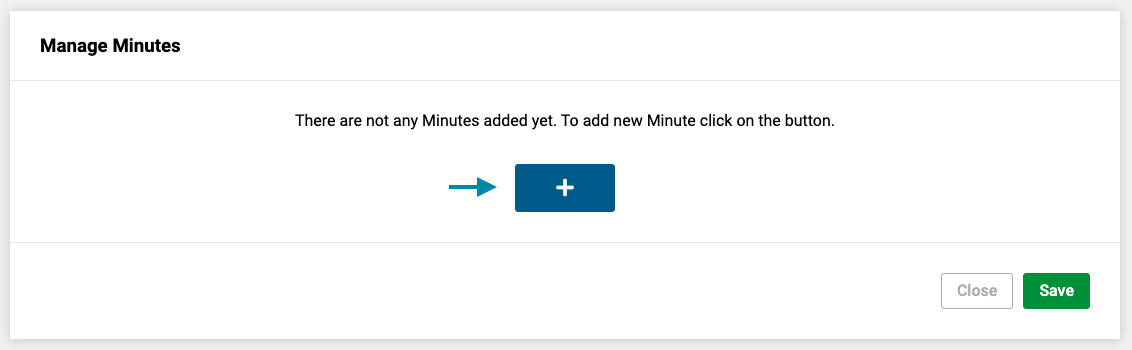
- Next, if this is the first time you are adding minutes to the meeting, click on the '+' sign to add the first minute to the meeting.
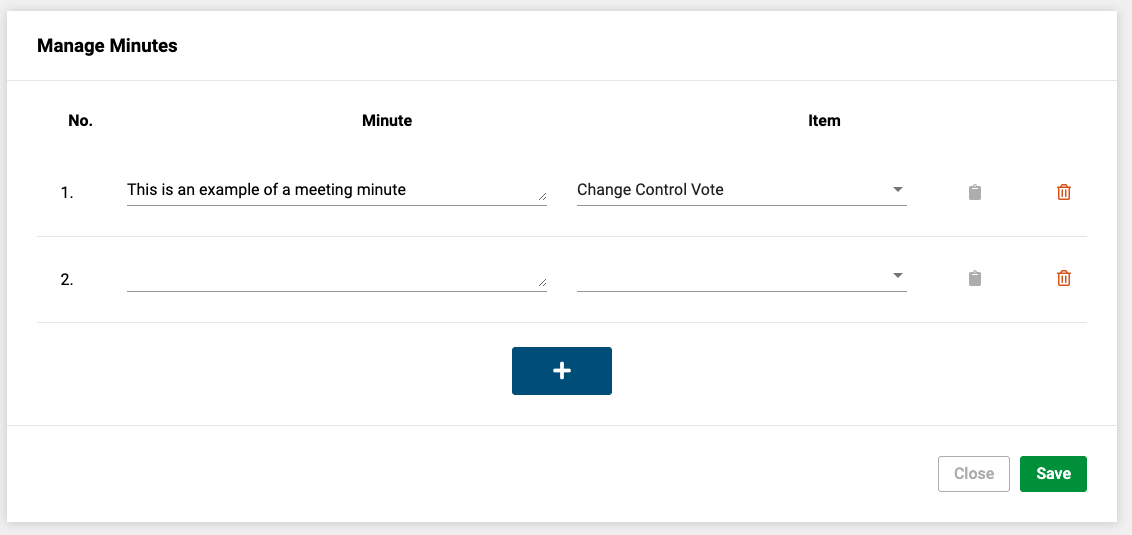
- Next, complete the form by entering in a brief summary of the point or comment to be captured, optionally associate the comment with the agenda topic on the agenda, and click the 'Save' Button in the lower right corner of the form to save and exit the minutes form.
B. Adding or Editing Meeting Minutes (From the Topic)
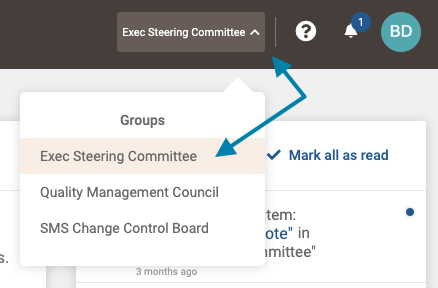
- First, select the group the topic is associated with from the group selection menu in the upper right area of the application.
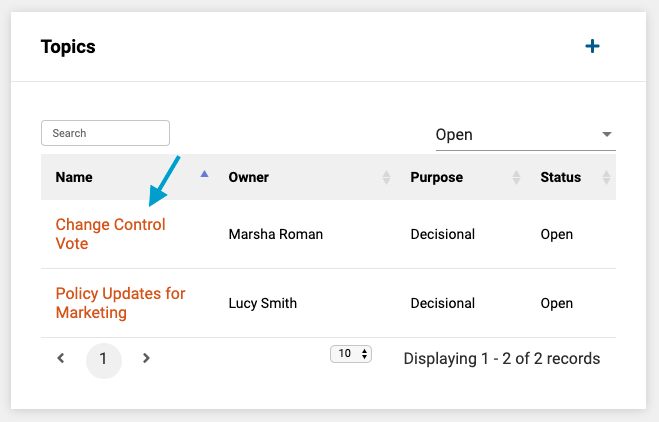
- Next, in the topics frame on the group page, select the topic by clicking on its title in the list of group topics.
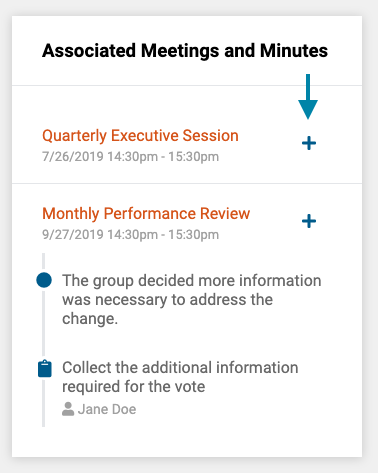
- Next, in the 'Associated Meetings and Minutes' frame on the topic page, click the '+' icon.
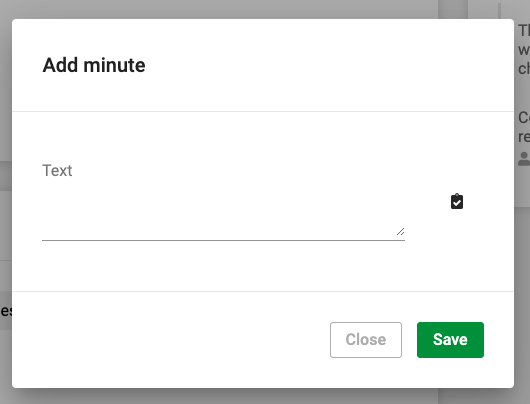
- Lastly, add the meeting minute text and click the 'Save' button to save the minute to the associated meeting.
Comments
0 comments
Article is closed for comments.