Important Notes:
- Comments and responses may be marked as 'Response Requested' - doing so highlights the need for a response on the topic owner's dashboard.
- You can "mention" a specific group member in a comment or response and the group member will receive a notification and email with a link to the comment and letting them know they were mentioned. Instructions for mentioning a group member can be found here.
- Group Members can set their individual comment notification frequency from within their profile. Instructions for setting notification frequency can be found here.
A. Adding a New Comment to a Topic
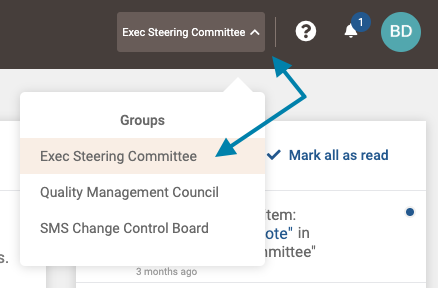
- First, select the group which possesses the topic you wish to comment on from the group selection menu in the upper right area of the application.
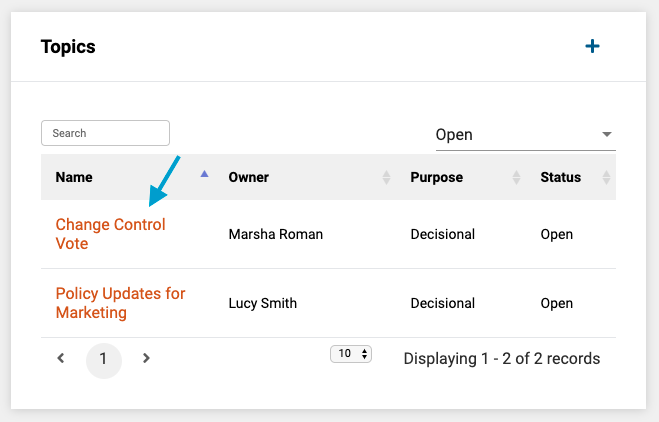
- Next, in the Topics frame on the group page, select the topic by clicking on its title in the list of topics.
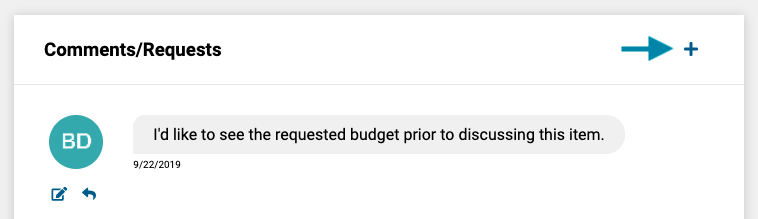
- Next, in the 'Comments/Requests' frame on the topic page, click the '+' icon.
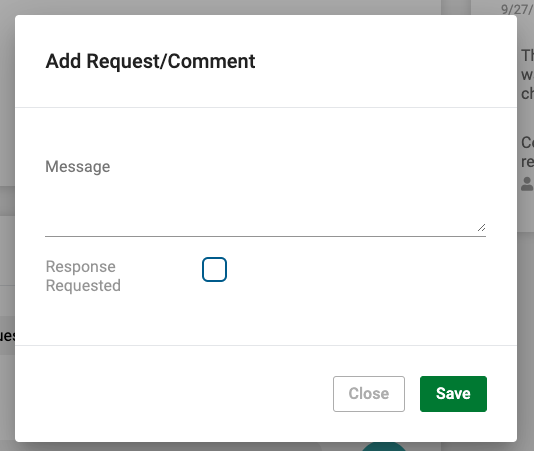
- Lastly, enter the desired comment and click the 'Save' button to save the comment.
Note: You may optionally check the 'Response Requested' checkbox to highlight that a request for more information or a response is requested from a member.
B. Responding to an Existing Comment
- Following the instructions above to access the topic page, click on the 'Response' icon next a comment or an existing response to open the response form.
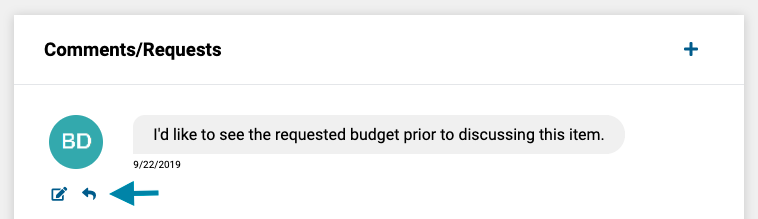
- Lastly, enter the response in the comment form and click the 'Save' button to save the response.
Comments
0 comments
Article is closed for comments.