Important Notes:
- If you are experiencing issues connecting your Zoom account to GovernSpot, please send an email to support@governspot.com or click here to submit a ticket and we will reach out to help you with any issues you may be experiencing.
- If for any reason your Zoom account is no longer successfully interacting with GovernSpot, you can re-establish the connection using the process below.
- For existing connections, please attempt to re-establish the connection rather than deleting and creating the account connection in order to ensure the integrity of any Zoom meeting details on past and future meetings.
1. Refreshing an Existing Zoom Connection
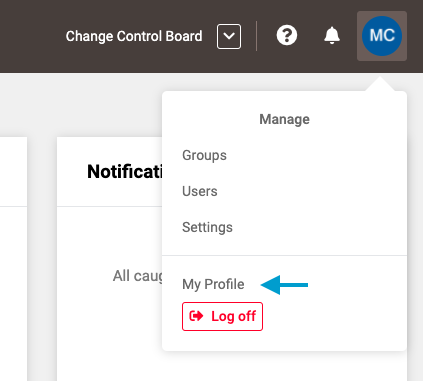
- First, select 'My Profile' from the drop down menu located in the upper right corner of the application.
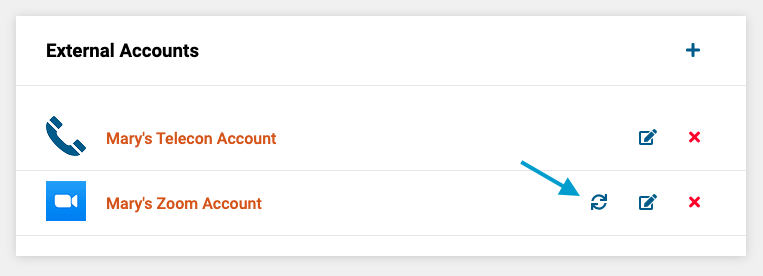
- Next, click the 'refresh' icon next to name of the account you wish to re-connect.
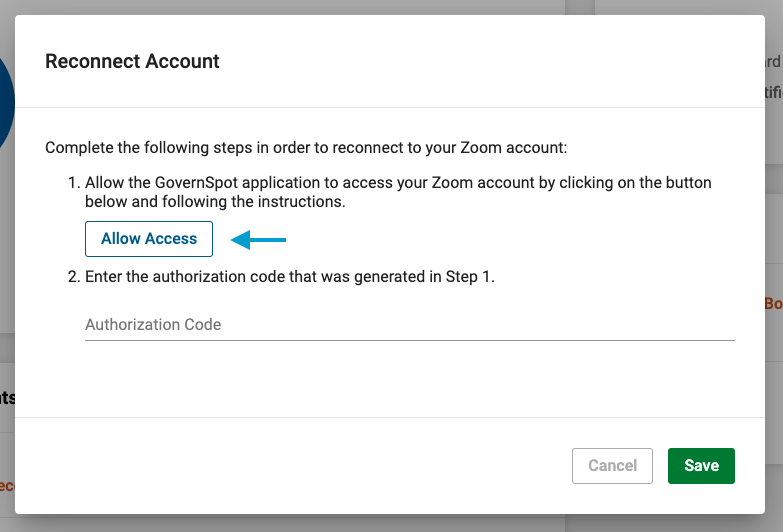
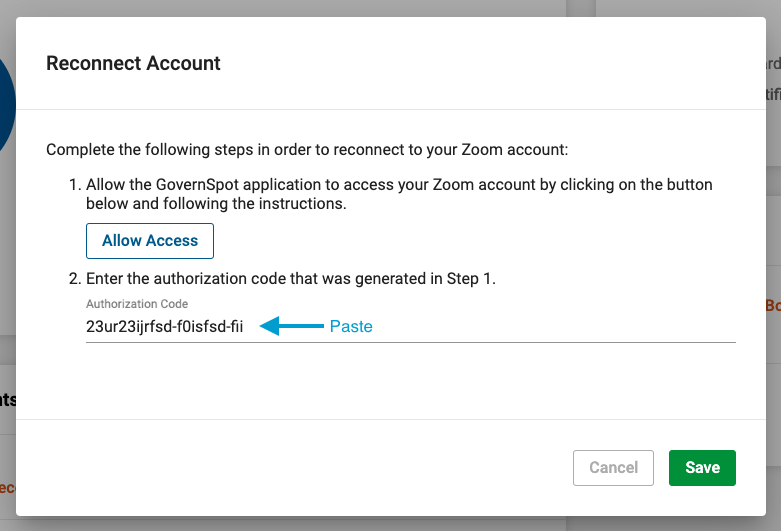
- Next, click the 'Allow Access' button, which will open a new tab in your browser to temporarily access Zoom.
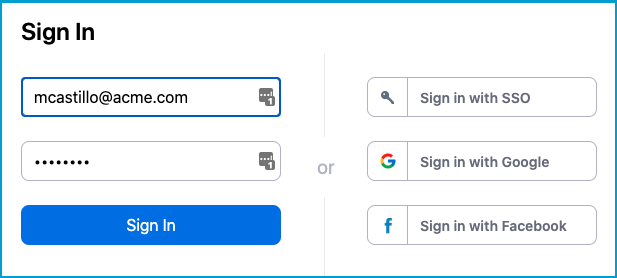
- Next, on the new tab, log in to Zoom with your Zoom account credentials.
Note: If you are already logged into Zoom using the same browser, this step may not appear.
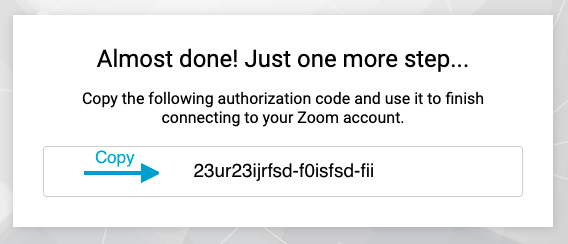
- Next, select and copy the code that appears in the window.
Note: To mitigate a potential copy/paste error, we recommend you do not close this browser tab until you have completed the remaining steps of the connection process.
- Lastly, return to the GovernSpot tab in your browser and paste the code in the 'Authorization Code' field. After you have pasted the code, click the 'Save' button in the lower right corner of the form.
2. Issues with Naming or Renaming an Account
When naming or renaming an account, you may encounter the error as pictured below.
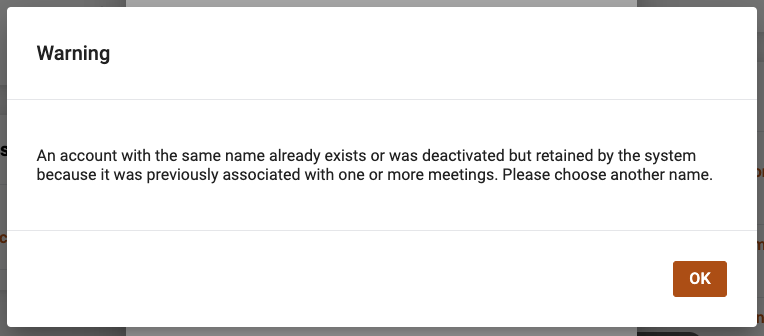
The system requires that each account possess a unique name, therefore you cannot name your account the same name as a current or previously deleted account. Note that in order to preserve the integrity of previous meetings that may have used or referenced an external account, the system retains a record of the previous account's existence after it is deleted, even if it has removed all other data associated with the account.
3. The GovernSpot App Appears in the Zoom Account but No Related Connection Exists in GovernSpot
The potential exists for the connection to appear in Zoom, but not in GovernSpot. This typically occurs when a connection process is started but not completed. To remedy this:
- Completing the Connection: Click here to complete the connection set up process. It is not necessary to delete the GovernSpot App from within Zoom to re-attempt the connection process.
- Clearing the Connection: Click here to access your Zoom Marketplace dashboard to remove the GovernSpot app within Zoom. No action is required within GovernSpot.
Comments
0 comments
Article is closed for comments.