Important Notes:
- You can connect a Zoom account to your GovernSpot account to automate meeting creation in Zoom from within GovernSpot.
- If an added Zoom account is selected when creating or editing a meeting, GovernSpot will automatically retrieve and associate Zoom meeting details within the GovernSpot meeting.
- Currently, a Zoom account can only be connect to one GovernSpot user account. If you use multiple workspaces in GovernSpot, you must deactivate a connected Zoom account before connecting it to a different GovernSpot user.
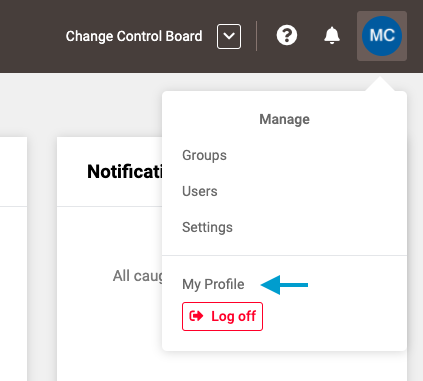
- First, select 'My Profile' from the drop down menu located in the upper right corner of the application.
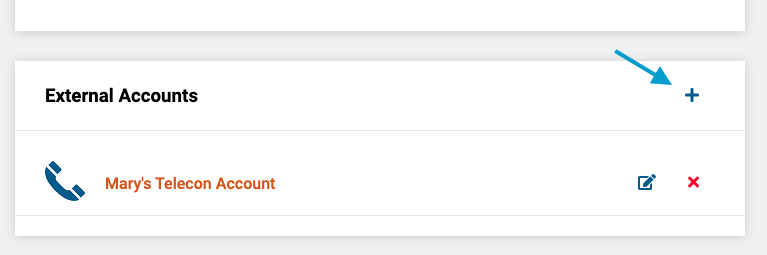
- Next, click the '+' icon in the upper right corner of the 'External Accounts' box on the profile page.
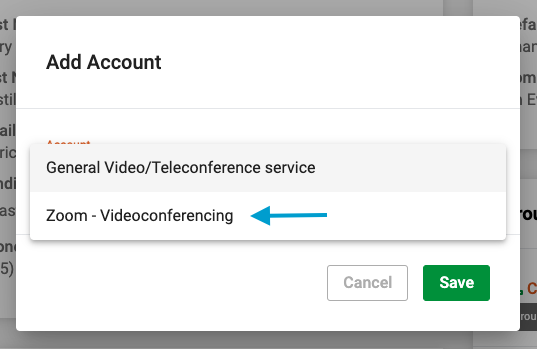
- Next, select 'Zoom - Videoconferencing' from the drop down box.
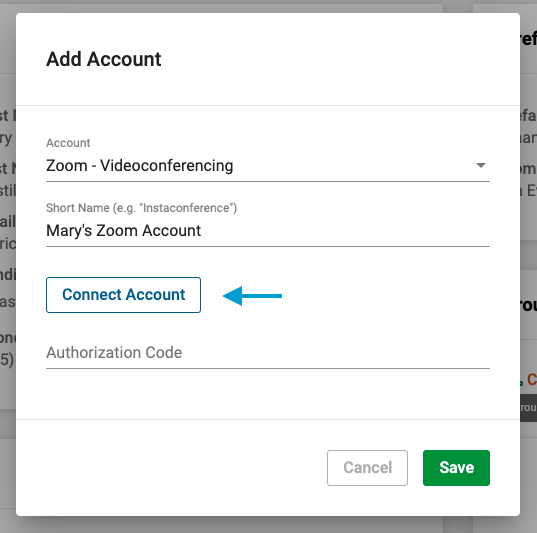
- Next, add a name for the account, which will be displayed when adding or editing meetings in GovernSpot. After adding a name, click on the 'Connect Account' button, which will open a new tab in your browser to temporarily access Zoom.
Note: Because other users may also add and edit meetings within a Group, we recommend giving your Zoom account a personalized name, such as, "Mary's Zoom Account" to help distinguish it if someone else has set up a meeting in a Group with a different Zoom account.
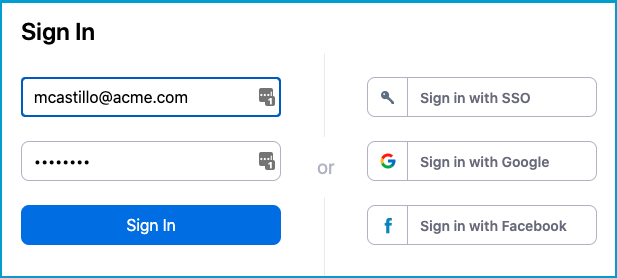
- Next, on the new tab, log in to Zoom with your Zoom account credentials.
Note: If you are already logged into Zoom using the same browser, this step may not appear.
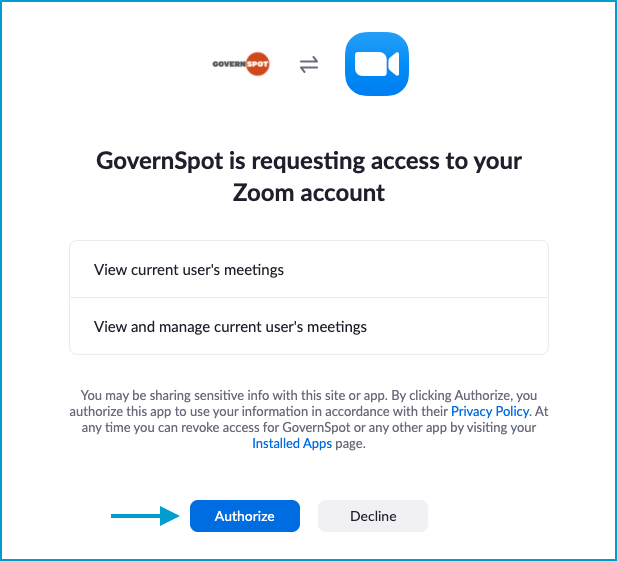
- Next, click the 'Authorize' button on the bottom of the screen.
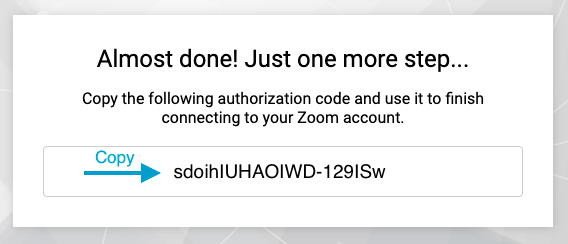
- Next, select and copy the code that appears in the window.
Note: To mitigate a potential copy/paste error, we recommend you do not close this browser tab until you have completed the remaining steps of the connection process.
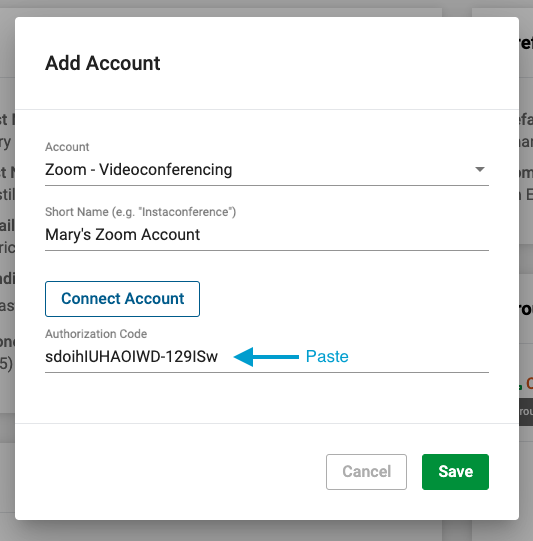
- Lastly, return to the GovernSpot tab in your browser and paste the code in the 'Authorization Code' field. After you have pasted the code, click the 'Save' button in the lower right corner of the form.
Comments
0 comments
Article is closed for comments.