Important Notes:
- When you select a Zoom account when creating a new meeting, the system will attempt to automatically schedule and retrieve the meeting coordinates from Zoom.
- Once retrieved, Zoom meeting details are automatically stored in the system and appended to the location field - you will not need to manually add the credentials to the meeting location even though they do not appear in the location field when editing a meeting.
- When editing a meeting, you may see another account selected if the meeting was created by another user. To ensure the privacy and security of Zoom accounts, the system will not change data in the other user's Zoom account if you change the meeting details or select one of your accounts as a replacement for the previous selection.
- First, when creating or editing an existing meeting, select the Zoom account you wish to associate with the GovernSpot meeting from the available accounts presented at the bottom of the form.
Note: If you need assistance with creating a new meeting, please click here. If you need assistance with editing an existing meeting, please click here.
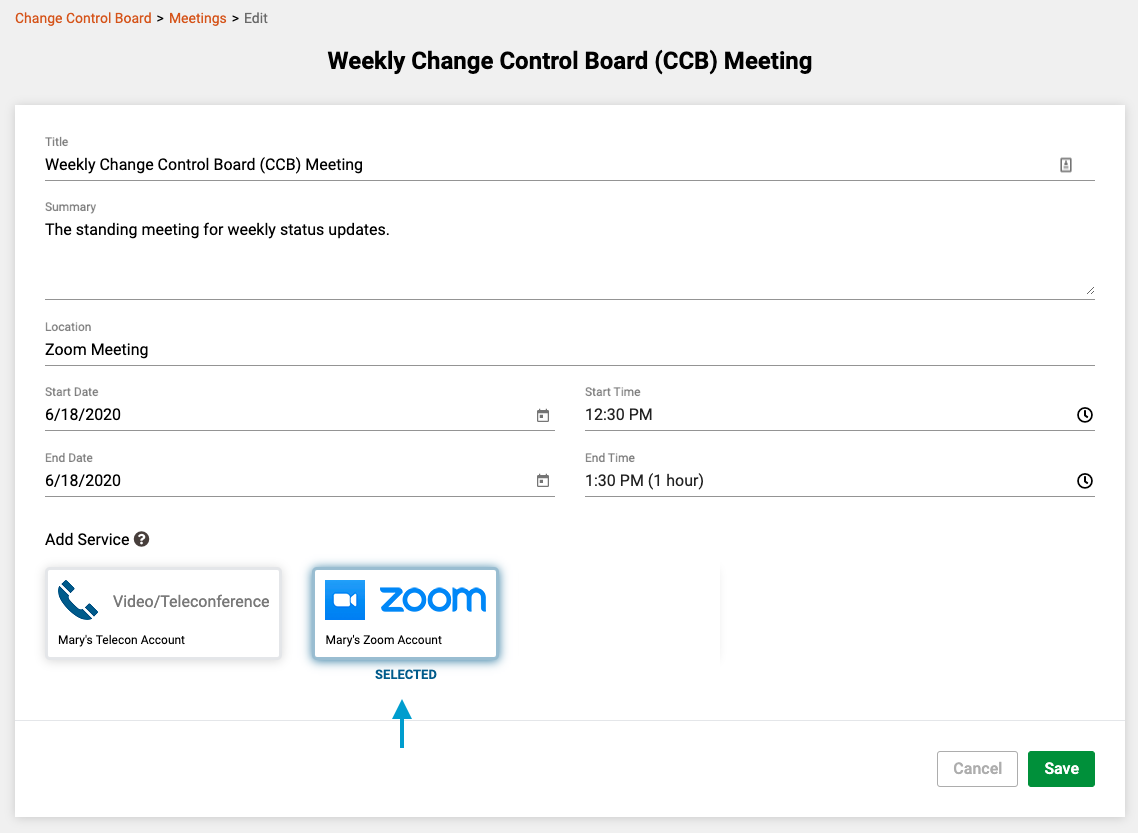
- Next click on the 'Save' button in the lower right corner of the form. Once saved, the system will automatically schedule the meeting in Zoom.
Note: If the system fails to retrieve or change the Zoom meeting details for any reason, the system will continue with its creation/edit/cancellation but will display a notification indicating that it was unable to successfully complete the process with Zoom.
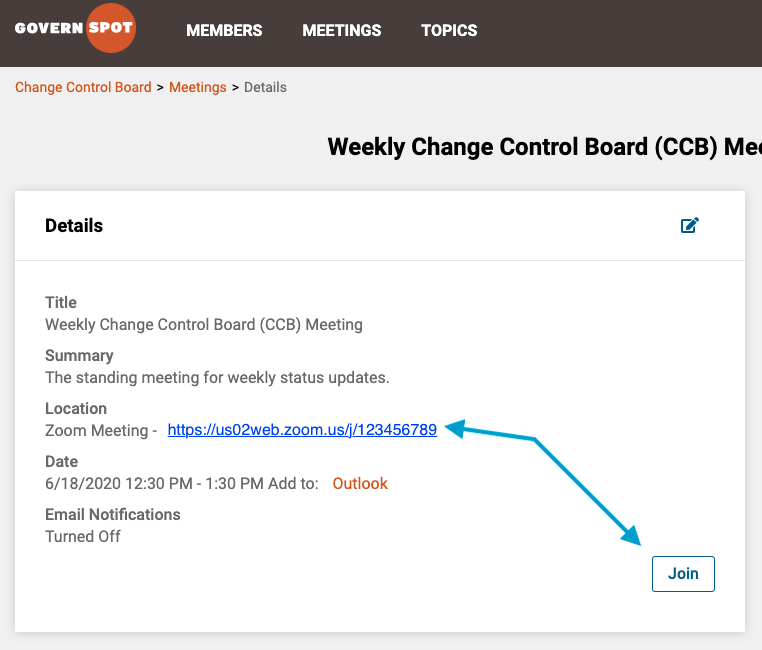
- Lastly, the Zoom meeting details will be displayed on the meeting page as illustrated below. If the meeting possesses a password for access, the password will be displayed for the user when they click the 'Join' button.
Comments
0 comments
Article is closed for comments.